
AWS has several strategies to migrate services into AWS. These strategies (aka 7 R’s) include:
- Retire
- Retain
- Relocate
- Rehost (aka lift and shift)
- Replatform (aka lift and reshape)
- Repurchase
- Refactor
A typical cloud migration will utilise several of these strategies together to move an organisation’s assets into a new cloud. This blog post will focus on the Rehost Strategy using Application Migration Services (aka MGN). MGN allows customers to migrate their applications and associated data to AWS with minimal downtime.
In this blog post I will walk you through the process to migrate a server from one VPC (source) to another VPC (target) using MGN. For simplicity, my source server is on AWS. However, the source server can be on-premise or in another cloud such as Azure. The process is very similar for the alternative scenarios mentioned above.
We start by deploying the Terraform code in the Github repository. This will give us the following base infrastructure:
- VPC (CIDR 172.16.0.0/20) for the source server
- Source server (EC2 instance)
- VPC (CIDR 172.17.0.0/20) for the target servers (test and actual)
- IAM Role for EC2 profile
- VPC Endpoints to remotely manage our EC2 instances
- Migration user with an access key to enable access to the Replication Instance
The overall architecture is shown below. The objects with black or orange text are created via code. Objects with purple text are temporary objects. Objects with green text are results of the migration or services that require configuration.
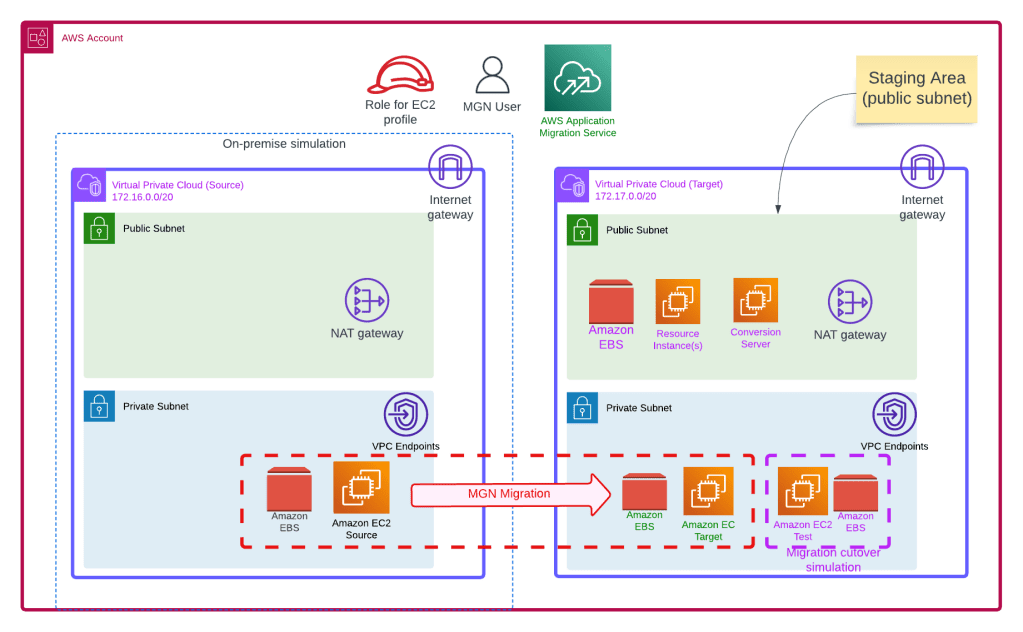
For the source EC2 instance we have assigned it two disks (10 GB Operating system & 4 GB data drive). The EC2 user data installs a website in the EC2 source instance and mounts the data EBS volume to mount point/data. We also a create a test file on the /data mount point to confirm we are capturing changes. Finally we prepare the server for migration by downloading a python script for the migration agent installation. The actual command to start replication is commented out in the user data as we need to complete some setup tasks in AWS first before replication commences. We will access the server and run this command later manually. I am using Amazon Linux AMI for testing, there is a similar process for Windows based servers, e.g. they download an exe file and run it (please refer to https://docs.aws.amazon.com/mgn/latest/ug/windows-agent.html).
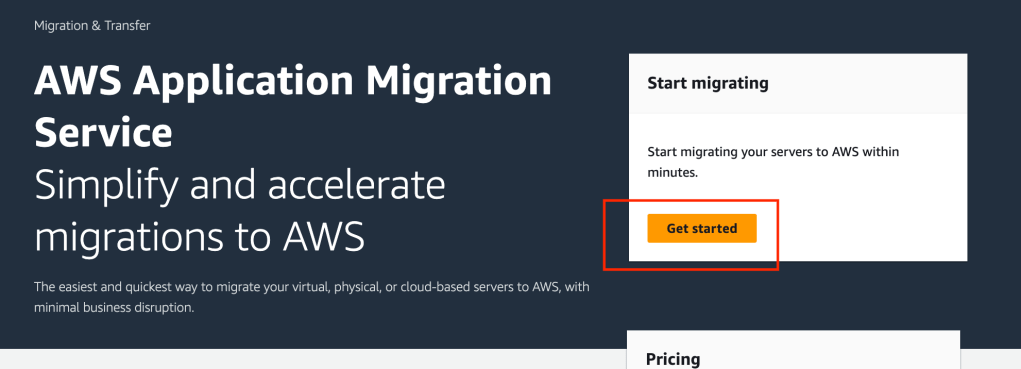
Once the code in deployed into your environment, we need to enable the Application Migration Service in the target account and configure some of the migration variables based on the objects deployed via the Github repository code. In the AWS console, go to the Application Migration Service. If you have not used the Application Migration Service for this account in your target region, you will see a welcome screen. Click on the orange Get Started button.
On the ‘Set up Application Migration Service’ screen, click on Set up Service.

The migration agent on the source server will replicate the server image to a Replication Instance located in a staging area subnet. Replication Instances are dynamically set up by the Application Migration Service as needed. We will need to tell the Application Migration Service where to place the Replication Instances (i.e. which subnet) and how big to make them.
In the Application Migration Service screen, click on Replication Template under settings. Click on the orange Edit button. We are going to place the Replication Instances in the public subnet of the Target VPC and set the Instance size to t3.small (default).
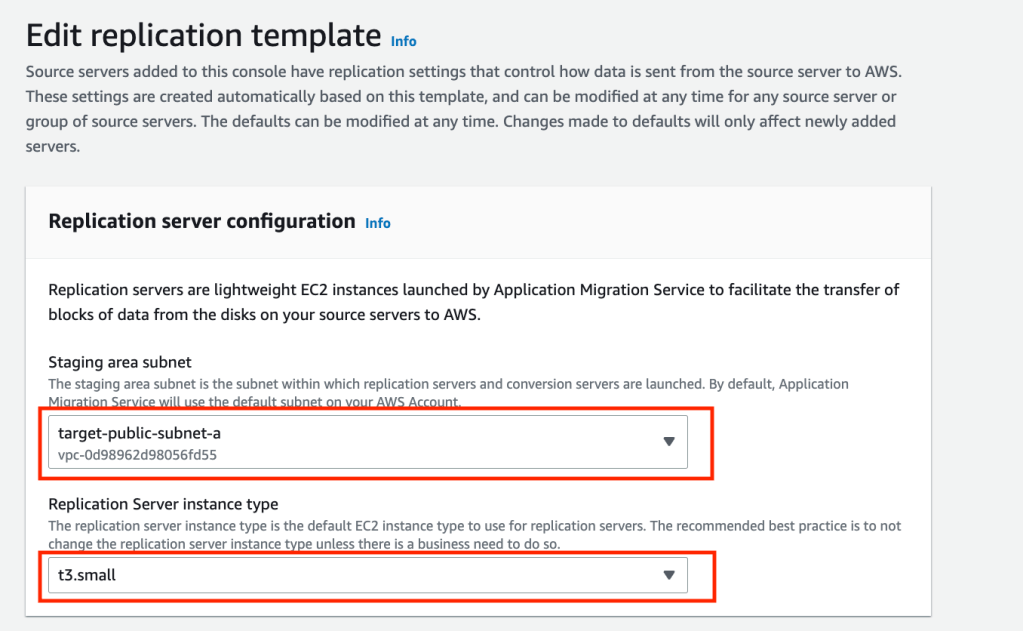
Click the orange Save template button.
We will need to set the configuration of the target servers by updating the Launch Template. In the Application Migration Service screen click on Launch Template under settings. Click on the orange Edit button. We are going to place the Target Instances in the private subnet of the Target VPC, turn off right sizing, set the security group, set the licensing mode and set the Instance size to t3.small (default).
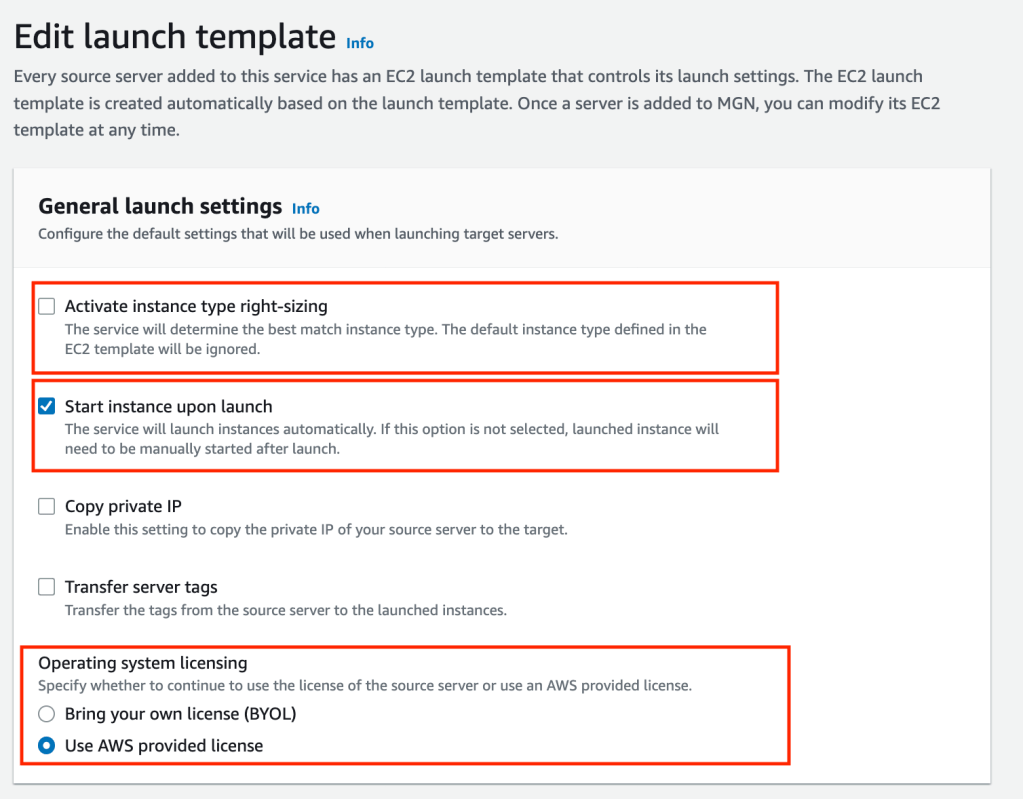
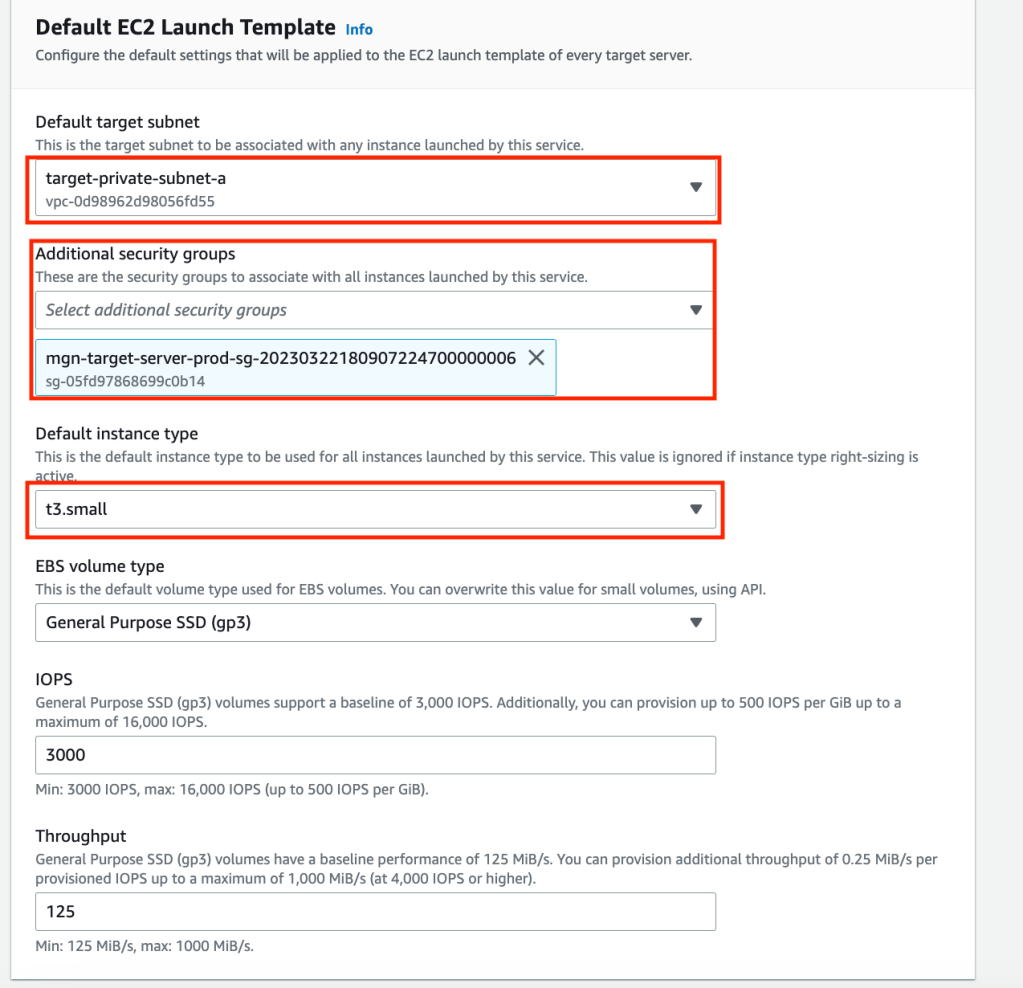
Click the orange Save template button.
Open the EC2 services screen and locate your server’s user data and copy it to a temporary location and note the last line containing your access key details. We will need to paste the last line (excluding # at the beginning) into the source server’s shell later in the instructions.
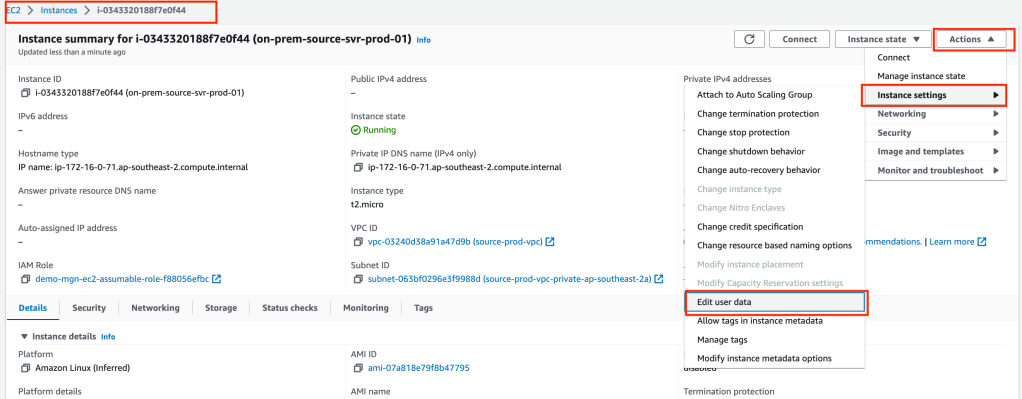
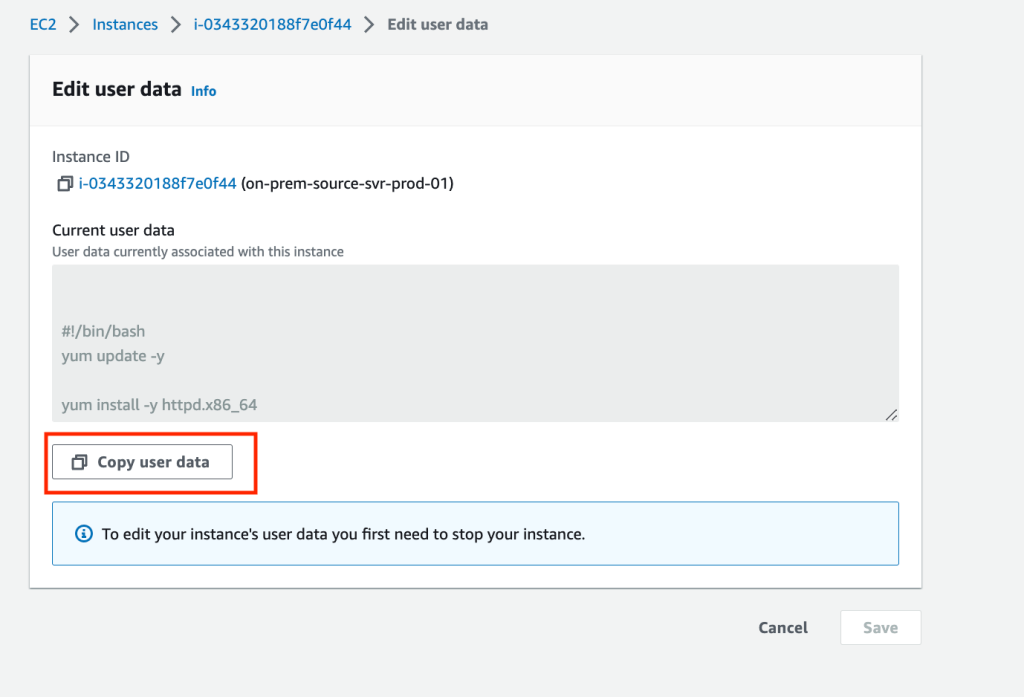
The command format is:
sudo python3 aws-replication-installer-init.py --region ap-southeast-2 --aws-access-key-id <your key here> --aws-secret-access-key <your secret here> --no-prompt
If you need to know the Migration User’s Access Key details (eg for other environments such as on-prem or Azure) to run the migration agent installation command, you can create a new key in the console and note the details and revoke the Access Key created by the code.
Remotely access your server via SSM session manager.
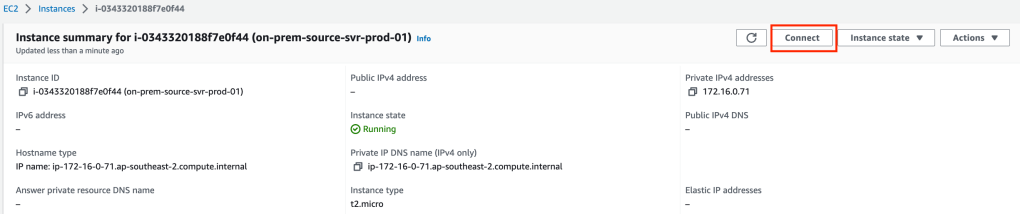
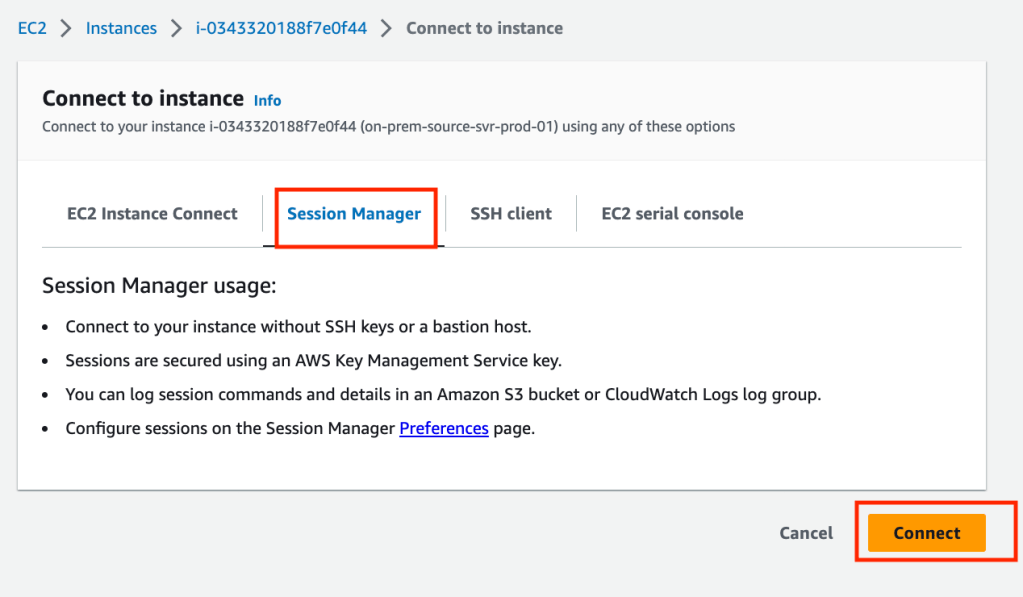
Run the following commands (use the command from your user data for the last line)
sudo su
cd ~
ls
sudo python3 aws-replication-installer-init.py --region ap-southeast-2 --aws-access-key-id <your key here>  --aws-secret-access-key <your secret here> --no-prompt
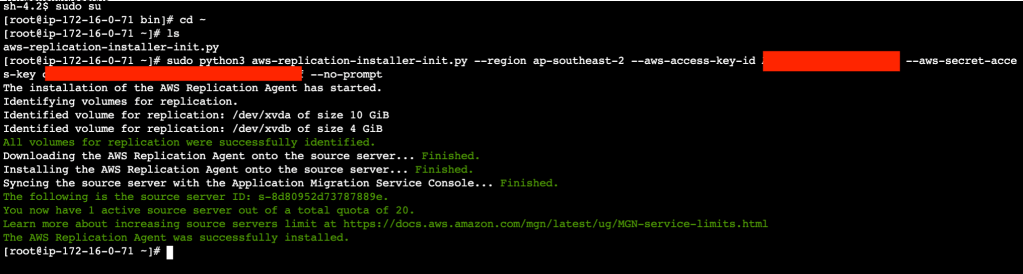
The Migration Agent installation will take 2-5 minutes depending on the size of your instance. Open the Application Migration Services console and click on Source Servers. You will notice a Source Server with a name starting with your IP address of our source server instance. Click on the source server hyperlink to observe the progress of the syncing and various preparation tasks happening in the background.
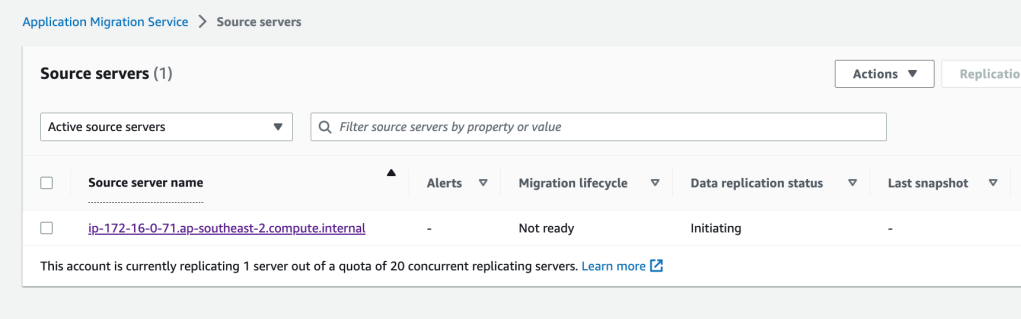
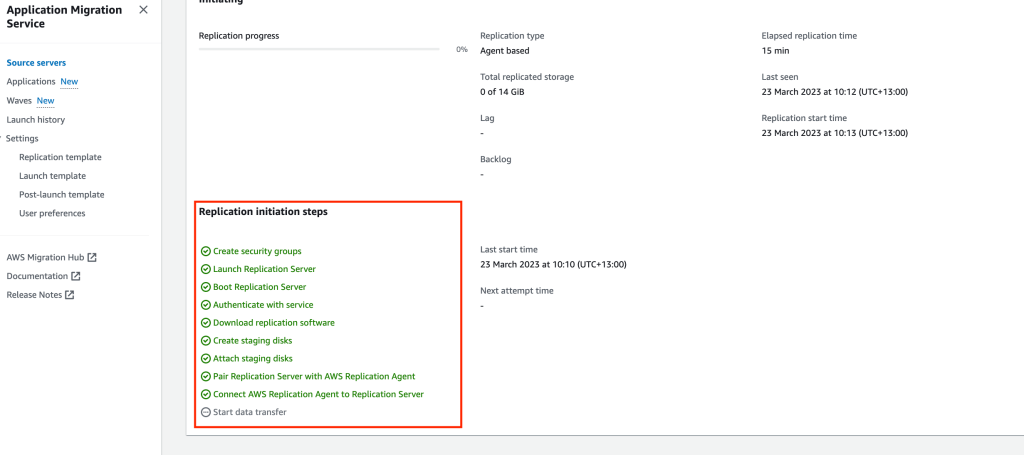
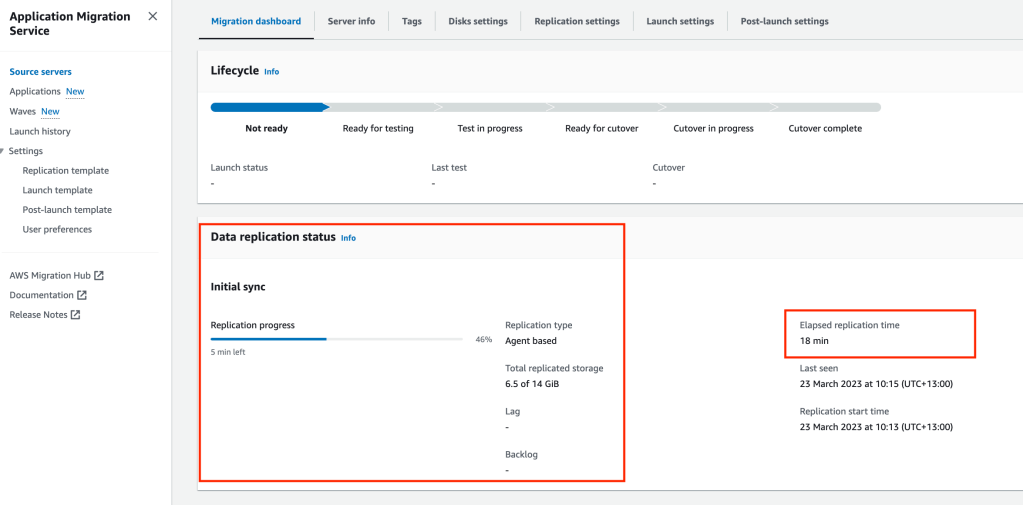
Once the preparation tasks are complete, the Migration Agent will start to replicate data to the Resource Instance in the Target VPC public subnet.
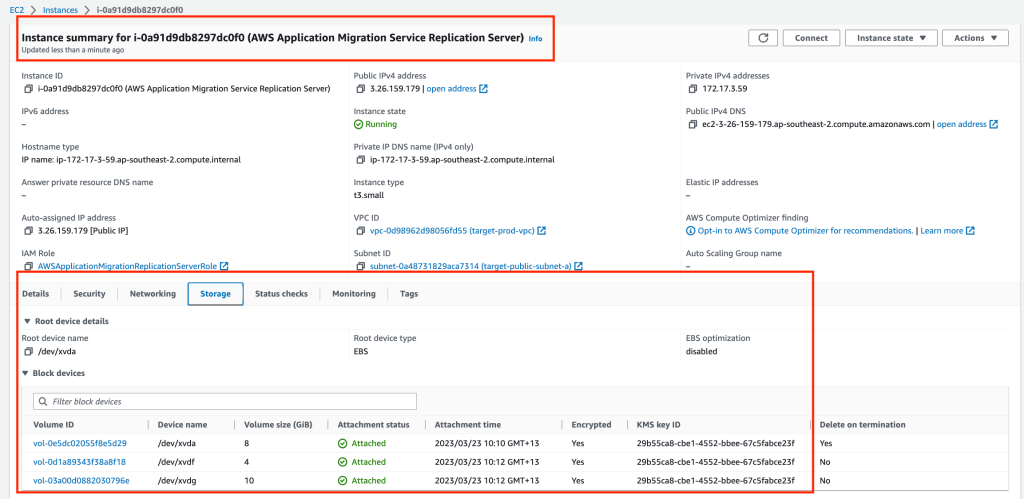
In the EC2 console you will notice a new server (Replication instance) is running. This server will have a base disk of 8GB and two additional disks that match our source server disk sizes.
When the source server has completed the initial replication, the lifecycle will move into the Ready for testing phase. Click on the Test and cutover button, then select Launch test instances. Then click the orange Launch button.
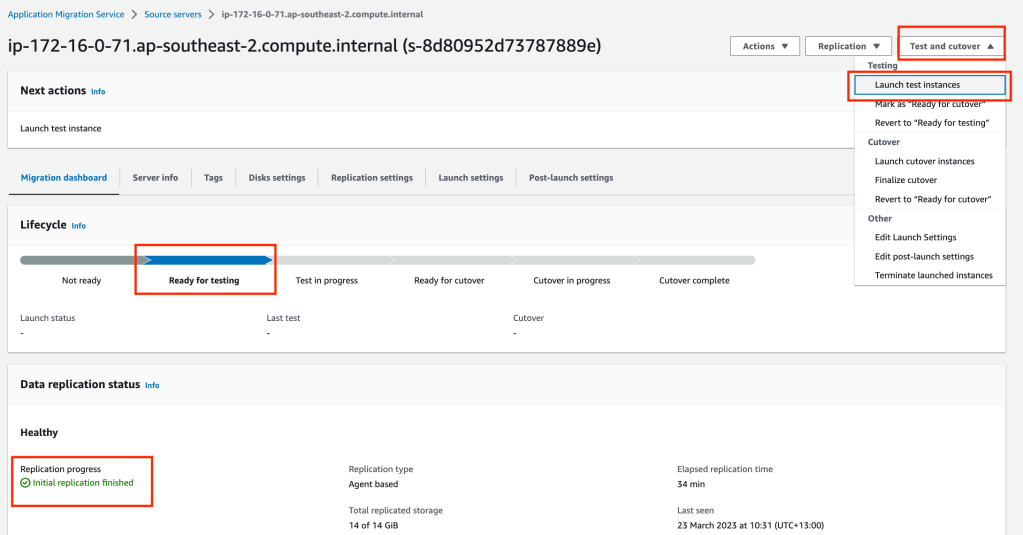
When we select to launch our test instances, in the background a new Conversion Server is set up in the public subnet. The two replicated disk images (EBS volumes) that are attached to Replication server are snapshotted and new volumes are created. The conversion server modifies the volumes to be bootable in the AWS environment (ie Operating system driver changes). Once the new volumes are bootable they are detached from the Conversion server and the Conversion server is terminated. The volumes are attached to the new instance (test target instance) and started up, ready for testing.
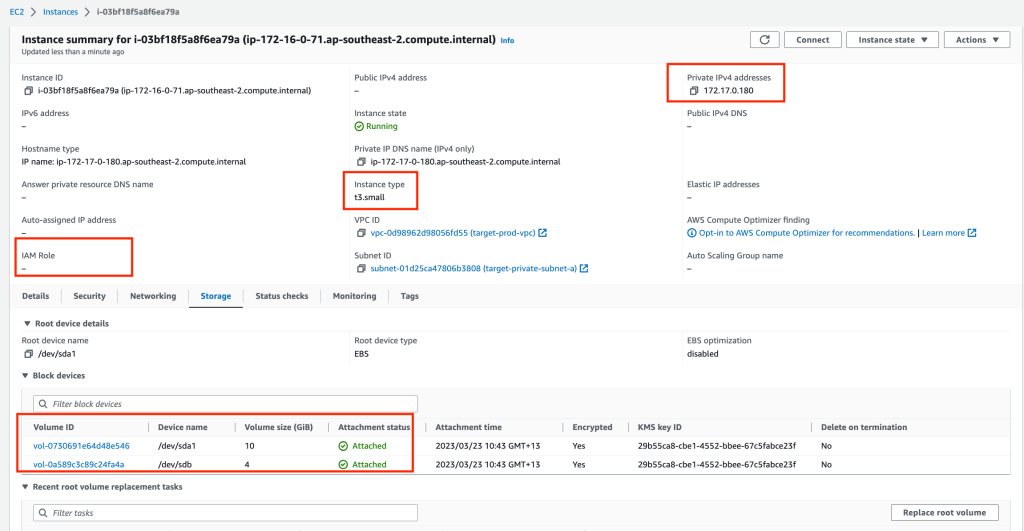
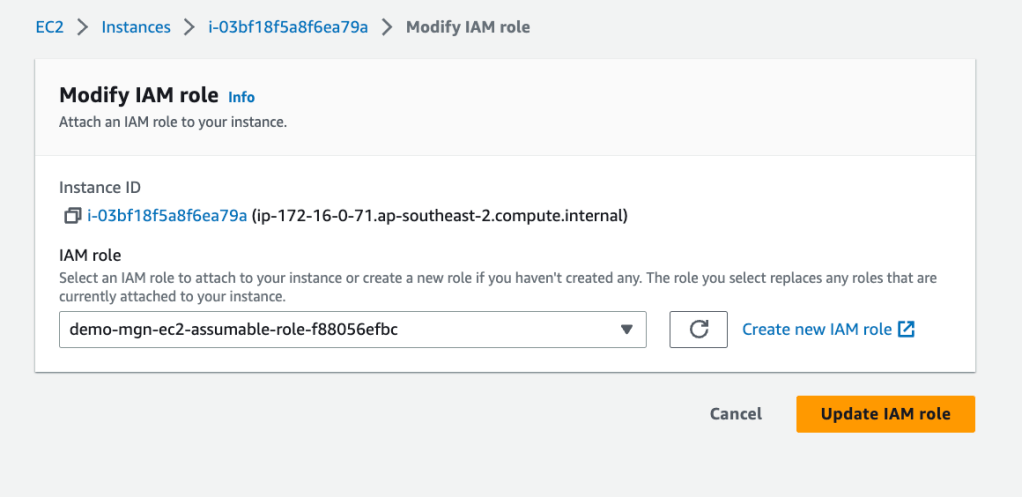
We will need to attach our IM Role to the server for remote access (I had to reboot the Instance to force the Instance profile to update).
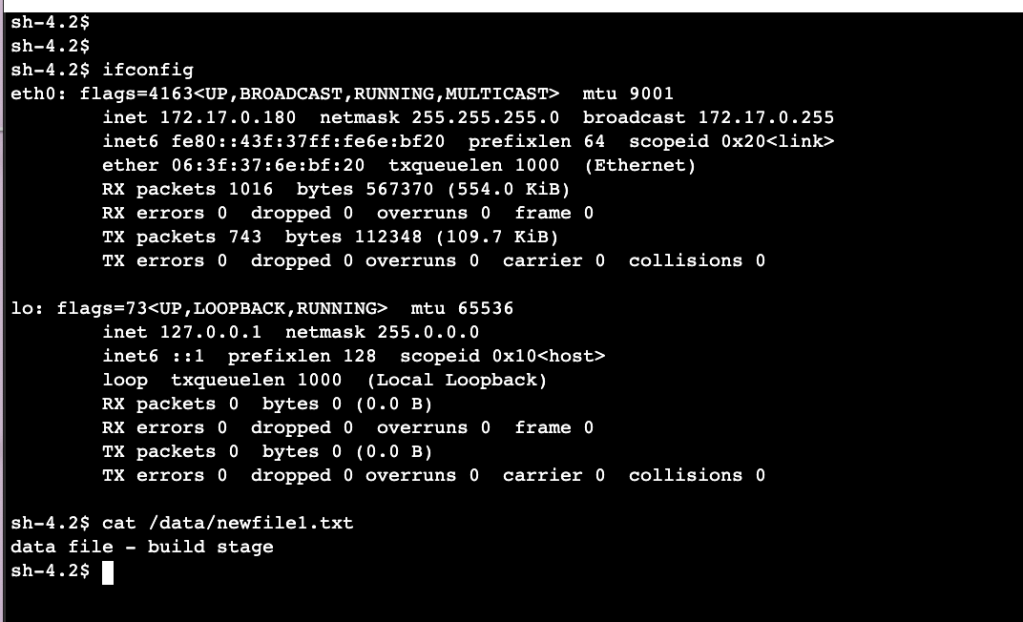
Once you access your server you can confirm the IP address of the server is in the private subnet and the data file contents are OK.
If our server passes our testing we need to mark it Ready for cutover in the Application Migration Services console.
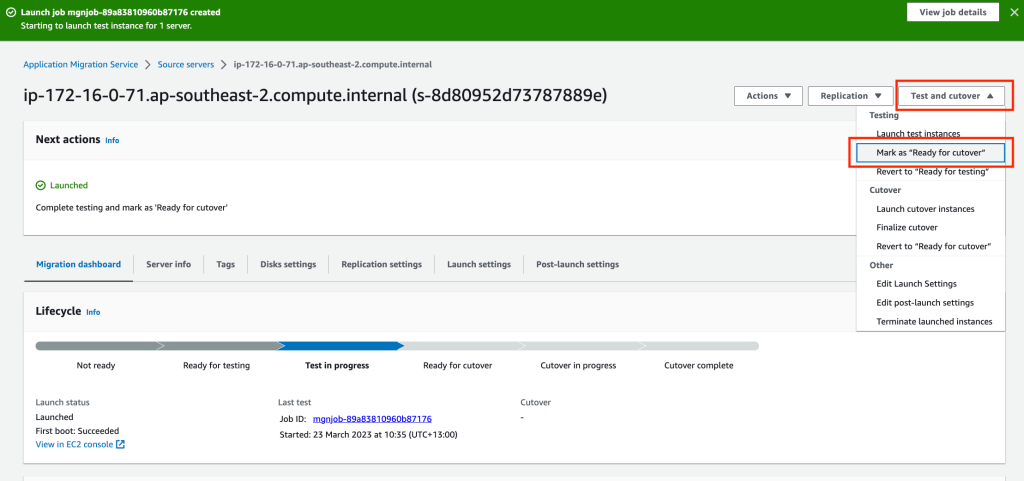
Click the orange Continue button on the next screen. This will terminate our test instance and tidy up some of the EBS volumes. The lifecycle stage will change to Ready for Cut over.

Connect back to our source server (assign role and reboot server) and run the following commands:
sudo su
echo "data file - pre cutover" >> /data/newfile1.txt
cat /data/newfile1.txt

In the Application Migration Service console, for our source server, click on Test and cutover and select Launch cutover instances.
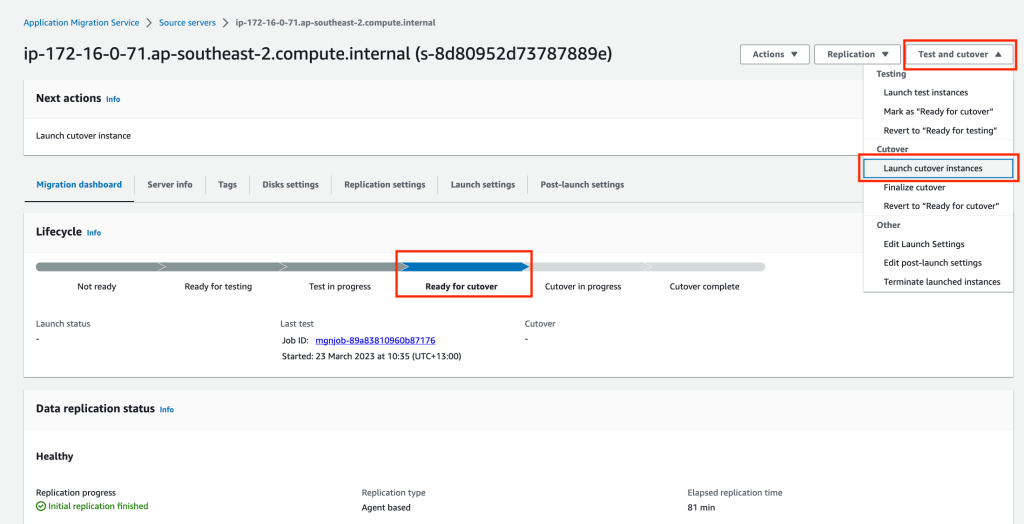
On the Launch cutover screen click on the orange Launch button.
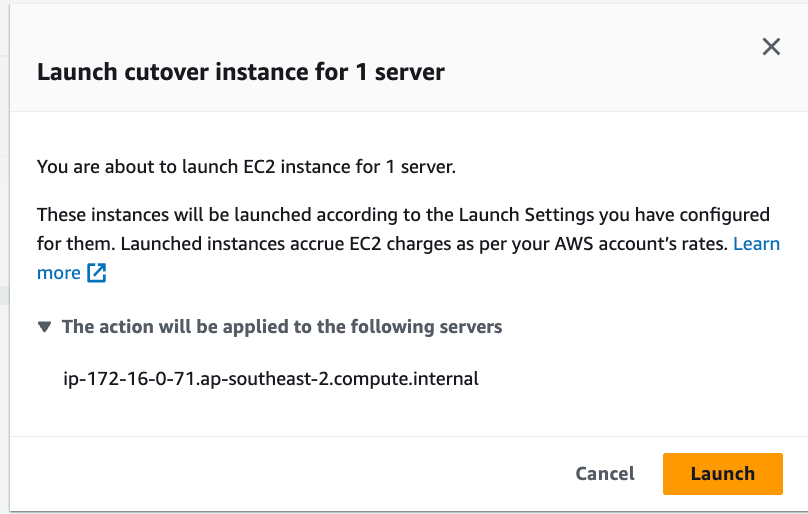
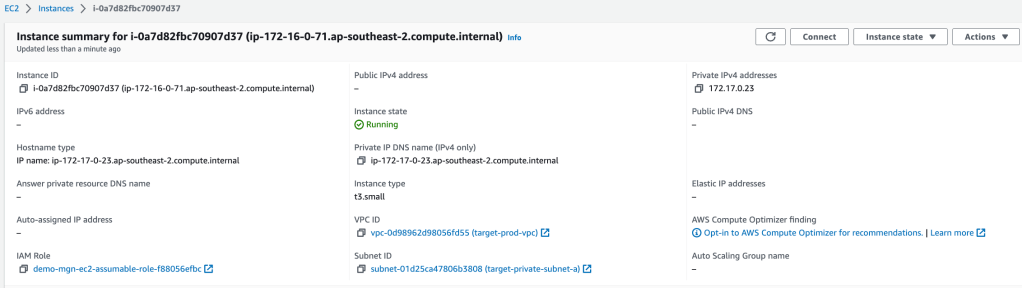
Similar to the test process, a Conversion server will be deployed to make the snapshoted volumes bootable on the target instance. Once the target server has been provisioned and the lifecycle phase is changed to Cutover complete, attach the EC2 role (demo-mgn-ec2-assumable-role-……) to access the server.
Access the target server and confirm the last change has been replicated by running the command cat /data/newfile1.txt

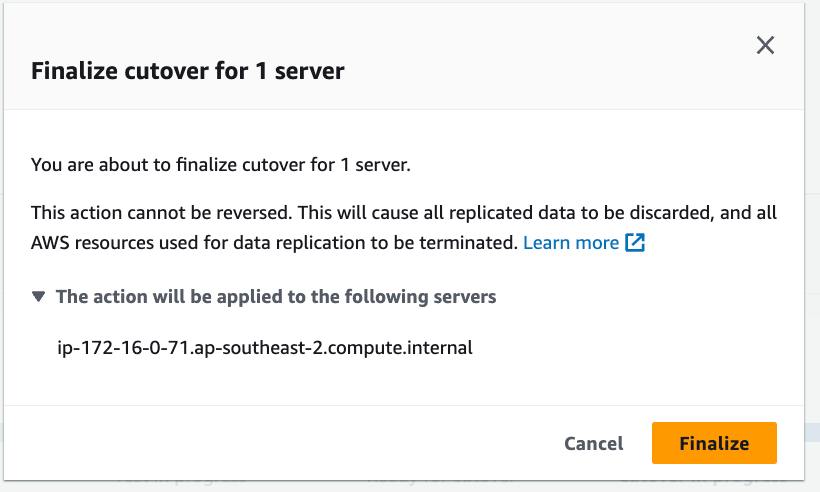
If the server check completes successfully, in the Application Migration Service, finalize the cutover by clicking Test and cutover then selecting Finalize cutover.
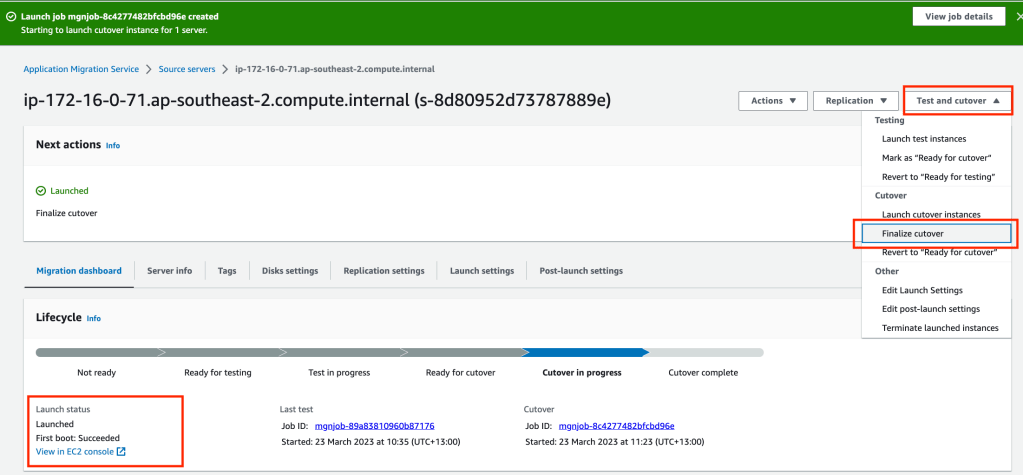
Click on the orange Finalize button to finalise the cutover and tidy up resources.
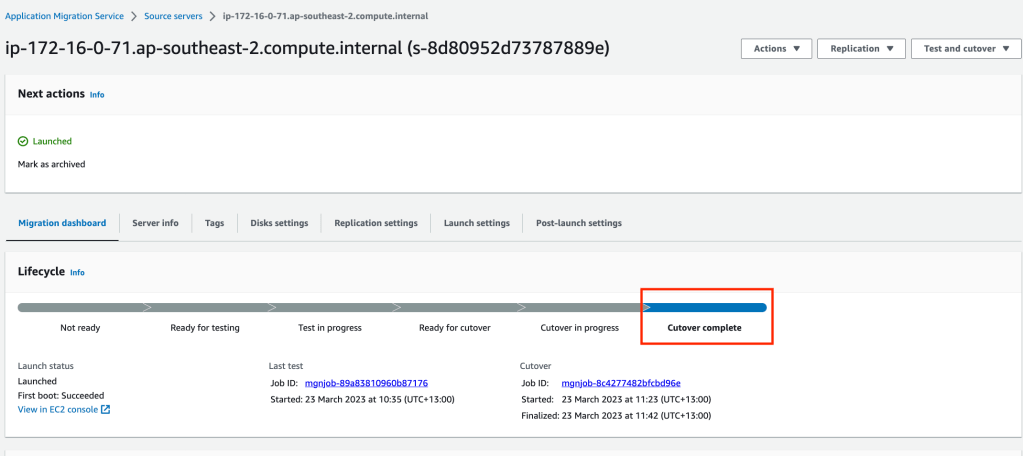
Finally we need to archive. Click on Actions and Mark as archived.

Click on the orange Archive button.
Conclusion
AWS Application Migration Service is a managed service offered by AWS that helps organisations migrate their applications and data to the AWS cloud. This service allows customers to migrate applications without the need to modify their source code and can be completed with minimal down time for their applications. The service is free but you will be charged for the resources required for the migrations such as staging area components (EBS volumes, snapshots, Resource Instance(s), Conversion servers). The continuous replication component allows you to capture changes on source server up till the point of cut over. There is an opportunity to test your cutover beforehand while replication from the source server continues in the background to your EBS volumes in the staging area.
The Migration Agent replication can be done over a private connection or over the internet. The replication is a continuous block level data transfer mechanism which is compressed and encrypted.
If your infrastructure is hosted on VMWare vCenter, there is an agentless option. You install one appliance into your VMWare infrastructure which will manage your replication into the staging area.
Summary of files in the Github Repository
data.tf – enumeration of AWS account and AMI image guid
data "aws_caller_identity" "current" {}

data "aws_ami" "amazon-linux-2" {
  most_recent = true
  owners      = ["amazon"]
  name_regex  = "amzn2-ami-hvm*"
}
ec2.tf – Source EC2 instance and ESB volumes
#-------------------------------------------------------------------
# Tutorial MGN Server Configuration
#-------------------------------------------------------------------
module "tutorial_mgn_source" {
  source  = "terraform-aws-modules/ec2-instance/aws"
  version = "3.5.0"
  depends_on = [module.demo_mgn_ec2_assumable_role,
    aws_iam_access_key.AccK
  ]
  #demo on-prem server only
  #checkov:skip=CKV_AWS_79: "Ensure Instance Metadata Service Version 1 is not enabled"
  #checkov:skip=CKV_AWS_126: "Ensure that detailed monitoring is enabled for EC2 instances"
  #checkov:skip=CKV_AWS_8: "Ensure all data stored in the Launch configuration or instance Elastic Blocks Store is securely encrypted"


  name = "on-prem-source-svr-${var.environment}-01"


  ami                         = data.aws_ami.amazon-linux-2.id
  instance_type               = "t2.micro"
  subnet_id                   = module.tutorial_source_vpc.private_subnets[0]
  availability_zone           = module.tutorial_source_vpc.azs[0]
  associate_public_ip_address = false
  vpc_security_group_ids      = [module.source_ec2_server_sg.security_group_id]
  iam_instance_profile        = module.demo_mgn_ec2_assumable_role.iam_instance_profile_id
  user_data_base64            = base64encode(local.user_data_prod)

  disable_api_termination = false

  enable_volume_tags = false
  root_block_device = [
    {
      volume_type = "gp3"
      volume_size = 10

    },
  ]

}

resource "aws_ebs_volume" "tutorial_mgn_data_drive" {
  #checkov:skip=CKV2_AWS_2: "Ensure that only encrypted EBS volumes are attached to EC2 instances"
  #checkov:skip=CKV_AWS_189: "Ensure EBS Volume is encrypted by KMS using a customer managed Key (CMK)"
  #checkov:skip=CKV_AWS_3: "Ensure all data stored in the EBS is securely encrypted"
  size              = 4
  type              = "gp3"
  availability_zone = module.tutorial_source_vpc.azs[0]

}

resource "aws_volume_attachment" "tutorial_mgn_data_drive_attachment" {

  device_name = "/dev/sdb"
  volume_id   = aws_ebs_volume.tutorial_mgn_data_drive.id
  instance_id = module.tutorial_mgn_source.id

}
iam.tf – MGN user (with access keys – yuck), EC2 instance profile role
resource "aws_iam_user" "mgn_user" {
  #checkov:skip=CKV_AWS_273: "Ensure access is controlled through SSO and not AWS IAM defined users"
  name = "MGNMigrationUser"
}

resource "aws_iam_access_key" "AccK" {
  user = aws_iam_user.mgn_user.name
}

resource "aws_iam_user_policy_attachment" "test-attach" {
  #checkov:skip=CKV_AWS_40: "Ensure IAM policies are attached only to groups or roles (Reducing access management complexity may in-turn reduce opportunity for a principal to inadvertently receive or retain excessive privileges.)"
  user       = aws_iam_user.mgn_user.name
  policy_arn = "arn:aws:iam::aws:policy/AWSApplicationMigrationAgentPolicy"
}

#--------------------------------------------------------------------------
# SSM EC2 assumable role
#--------------------------------------------------------------------------

resource "random_id" "random_id" {
  byte_length = 5

}

module "demo_mgn_ec2_assumable_role" {
  source  = "terraform-aws-modules/iam/aws//modules/iam-assumable-role"
  version = "4.17.1"

  trusted_role_services = [
    "ec2.amazonaws.com"
  ]

  role_requires_mfa       = false
  create_role             = true
  create_instance_profile = true

  role_name = "demo-mgn-ec2-assumable-role-${random_id.random_id.hex}"

  custom_role_policy_arns = [
    "arn:aws:iam::aws:policy/AmazonSSMManagedInstanceCore",
  ]

  tags = local.tags_generic
}
locals.tf – tagging labels, EC2 user data
locals {

  tags_generic = {
    environment = var.environment
    costcentre  = "TBC"
    ManagedBy   = var.ManagedByLocation
  }

  tag_backup = {
    Application = "Tutorial MGN Souce"
  }


  tags_ssm_ssm = {
    Name = "myvpc-vpce-interface-ssm-ssm"
  }

  tags_ssm_ssmmessages = {
    Name = "myvpc-vpce-interface-ssm-ssmmessages"
  }

  tags_ssm_ec2messages = {
    Name = "myvpc-vpce-interface-ssm-ec2messages"
  }

  user_data_prod = <<-EOT

  #!/bin/bash
  yum update -y

  yum install -y httpd.x86_64
  systemctl start httpd.service
  systemctl enable httpd.service
  echo “Hello World from $(hostname -f)” > /var/www/html/index.html

  sudo mkdir -p /data
  sudo mkfs.xfs /dev/xvdb
  sudo echo "$(blkid -o export /dev/xvdb | grep ^UUID=) /data xfs defaults,noatime" | tee -a /etc/fstab
  sudo mount -a
  echo "data file - build stage" > /data/newfile1.txt

  cd ~
  wget -O ./aws-replication-installer-init.py https://aws-application-migration-service-ap-southeast-2.s3.ap-southeast-2.amazonaws.com/latest/linux/aws-replication-installer-init.py
  #sudo python3 aws-replication-installer-init.py --region ap-southeast-2 --aws-access-key-id ${aws_iam_access_key.AccK.id}  --aws-secret-access-key ${aws_iam_access_key.AccK.secret} --no-prompt

  EOT
}
provider.tf – Terraform system file
provider "aws" {
  region = var.region

}

provider "aws" {
  alias  = "dr-region"
  region = var.region_dr

}
security-groups.tf – security groups for VPC endpoints and EC2 instances
#------------------------------------------------------------------------------
# Source VPC security groups
#------------------------------------------------------------------------------

resource "aws_default_security_group" "default_source" {
  depends_on = [module.tutorial_source_vpc]

  vpc_id = module.tutorial_source_vpc.vpc_id

  ingress = []
  egress  = []

}


module "source_https_443_security_group" {
  source  = "terraform-aws-modules/security-group/aws//modules/https-443"
  version = "4.16.2"
  #checkov:skip=CKV2_AWS_5: "Ensure that Security Groups are attached to another resource"

  name        = "vpce-source-https-443-sg"
  description = "Allow https 443"
  vpc_id      = module.tutorial_source_vpc.vpc_id

  ingress_cidr_blocks = [module.tutorial_source_vpc.vpc_cidr_block]

  egress_rules = ["https-443-tcp"]

  tags = local.tags_generic
}


module "source_ec2_server_sg" {
  source  = "terraform-aws-modules/security-group/aws"
  version = "4.9.0"
  #checkov:skip=CKV2_AWS_5: "Ensure that Security Groups are attached to another resource"

  name        = "mgn-source-server-${var.environment}-sg"
  description = "Security group for MGN Source - ${var.environment}"
  vpc_id      = module.tutorial_source_vpc.vpc_id

  ingress_cidr_blocks = ["0.0.0.0/0"]
  ingress_rules       = ["http-80-tcp"]

  egress_cidr_blocks = ["0.0.0.0/0"]
  egress_rules       = ["https-443-tcp", "http-80-tcp"]

  egress_with_cidr_blocks = [
    {
      from_port   = 1500
      to_port     = 1500
      protocol    = "tcp"
      description = "RI server"
      cidr_blocks = "0.0.0.0/0"
    },
  ]


}


#------------------------------------------------------------------------------
# Target VPC security groups
#------------------------------------------------------------------------------

resource "aws_default_security_group" "default_target" {
  depends_on = [module.tutorial_target_vpc]

  vpc_id = module.tutorial_target_vpc.vpc_id

  ingress = []
  egress  = []

}

module "target_https_443_target_security_group" {
  source  = "terraform-aws-modules/security-group/aws//modules/https-443"
  version = "4.16.2"
  #checkov:skip=CKV2_AWS_5: "Ensure that Security Groups are attached to another resource"

  name        = "vpce-target-https-443-sg"
  description = "Allow https 443"
  vpc_id      = module.tutorial_target_vpc.vpc_id

  ingress_cidr_blocks = [module.tutorial_target_vpc.vpc_cidr_block]


  egress_rules = ["https-443-tcp"]

  tags = local.tags_generic
}


module "target_ec2_server_sg" {
  source  = "terraform-aws-modules/security-group/aws"
  version = "4.9.0"
  #checkov:skip=CKV2_AWS_5: "Ensure that Security Groups are attached to another resource"


  name        = "mgn-target-server-${var.environment}-sg"
  description = "Security group for MGN target - ${var.environment}"
  vpc_id      = module.tutorial_target_vpc.vpc_id

  ingress_cidr_blocks = ["0.0.0.0/0"]
  ingress_rules       = ["http-80-tcp"]

  egress_cidr_blocks = ["0.0.0.0/0"]
  egress_rules       = ["all-all"]

}
ssm.tf – remote access
#------------------------------------------------------------------------------
# VPC - SSM Endpoints
#------------------------------------------------------------------------------
module "vpc_ssm_endpoint_source" {

  source  = "terraform-aws-modules/vpc/aws//modules/vpc-endpoints"
  version = "5.5.2"

  vpc_id             = module.tutorial_source_vpc.vpc_id
  security_group_ids = [module.source_https_443_security_group.security_group_id]

  endpoints = {
    ssm = {
      service             = "ssm"
      private_dns_enabled = true
      subnet_ids          = module.tutorial_source_vpc.private_subnets
      tags                = merge(local.tags_generic, local.tags_ssm_ssm)
    },
    ssmmessages = {
      service             = "ssmmessages"
      private_dns_enabled = true,
      subnet_ids          = module.tutorial_source_vpc.private_subnets
      tags                = merge(local.tags_generic, local.tags_ssm_ssmmessages)
    },
    ec2messages = {
      service             = "ec2messages",
      private_dns_enabled = true,
      subnet_ids          = module.tutorial_source_vpc.private_subnets
      tags                = merge(local.tags_generic, local.tags_ssm_ec2messages)
    }
  }
}

module "vpc_ssm_endpoint_target" {

  source  = "terraform-aws-modules/vpc/aws//modules/vpc-endpoints"
  version = "5.5.2"

  vpc_id             = module.tutorial_target_vpc.vpc_id
  security_group_ids = [module.target_https_443_target_security_group.security_group_id]

  endpoints = {
    ssm = {
      service             = "ssm"
      private_dns_enabled = true
      subnet_ids          = module.tutorial_target_vpc.private_subnets
      tags                = merge(local.tags_generic, local.tags_ssm_ssm)
    },
    ssmmessages = {
      service             = "ssmmessages"
      private_dns_enabled = true,
      subnet_ids          = module.tutorial_target_vpc.private_subnets
      tags                = merge(local.tags_generic, local.tags_ssm_ssmmessages)
    },
    ec2messages = {
      service             = "ec2messages",
      private_dns_enabled = true,
      subnet_ids          = module.tutorial_target_vpc.private_subnets
      tags                = merge(local.tags_generic, local.tags_ssm_ec2messages)
    }
  }
}
terraform.tfvars – variable configuration file
region            = "ap-southeast-2"
environment       = "prod"
ManagedByLocation = "https://github.com/arinzl"

vpc_cidr_range_source       = "172.16.0.0/20"
private_subnets_source_list = ["172.16.0.0/24"]
public_subnets_source_list  = ["172.16.3.0/24"]

ec2_app_name = "tutorial-Web-MGN"

vpc_cidr_range_target       = "172.17.0.0/20"
private_subnets_target_list = ["172.17.0.0/24"]
public_subnets_target_list  = ["172.17.3.0/24"]
variables.tf – Terraform variable definition file
#------------------------------------------------------------------------------
# General
#------------------------------------------------------------------------------
variable "region" {
  description = "Primary region for deployment"
  type        = string
}

variable "environment" {
  description = "Organisation environment"
  type        = string
}

variable "ManagedByLocation" {
  description = "Location of Infrastructure of Code"
  type        = string
}


#------------------------------------------------------------------------------
# VPCs (Source and Target)
#------------------------------------------------------------------------------

variable "vpc_cidr_range_source" {
  type = string

}

variable "private_subnets_source_list" {
  description = "Private subnet list for infrastructure"
  type        = list(string)

}

variable "public_subnets_source_list" {
  description = "Public subnet list for infrastructure"
  type        = list(string)

}

variable "vpc_cidr_range_target" {
  type = string

}

variable "private_subnets_target_list" {
  description = "Private subnet list for target infrastructure"
  type        = list(string)

}

variable "public_subnets_target_list" {
  description = "Private subnet list for target infrastructure"
  type        = list(string)

}
#------------------------------------------------------------------------------
# EC2
#------------------------------------------------------------------------------

variable "ec2_app_name" {
  description = "Application running on EC2 instance"
  type        = string

}
versions.tf – Terraform system file
terraform {
  required_version = ">= 0.13.1"

  required_providers {
    aws = {
      version = ">= 3.74.0"
      source  = "hashicorp/aws"
    }
  }
}
vpc.tf – VPC configuration for source and destination
#------------------------------------------------------------------------------
# VPC Module
#------------------------------------------------------------------------------
module "tutorial_source_vpc" {
  source  = "terraform-aws-modules/vpc/aws"
  version = "5.5.2"
  #checkov:skip=CKV_AWS_130: "Ensure VPC subnets do not assign public IP by default"
  #checkov:skip=CKV_AWS_111: "Ensure IAM policies does not allow write access without constraints"
  #checkov:skip=CKV2_AWS_12: "Ensure the default security group of every VPC restricts all traffic"

  name = "source-${var.environment}-vpc"
  cidr = var.vpc_cidr_range_source

  azs             = ["${var.region}a"]
  private_subnets = var.private_subnets_source_list
  public_subnets  = var.public_subnets_source_list

  enable_flow_log                      = false
  create_flow_log_cloudwatch_log_group = false
  create_flow_log_cloudwatch_iam_role  = false
  flow_log_max_aggregation_interval    = 60

  create_igw         = true
  enable_nat_gateway = true
  enable_ipv6        = false

  enable_dns_hostnames = true
  enable_dns_support   = true

}


module "tutorial_target_vpc" {
  source  = "terraform-aws-modules/vpc/aws"
  version = "5.5.2"
  #checkov:skip=CKV_AWS_130: "Ensure VPC subnets do not assign public IP by default"
  #checkov:skip=CKV_AWS_111: "Ensure IAM policies does not allow write access without constraints"
  #checkov:skip=CKV2_AWS_12: "Ensure the default security group of every VPC restricts all traffic"

  name = "target-${var.environment}-vpc"
  cidr = var.vpc_cidr_range_target

  azs             = ["${var.region}a"]
  private_subnets = var.private_subnets_target_list
  public_subnets  = var.public_subnets_target_list

  private_subnet_names = ["target-private-subnet-a"]
  public_subnet_names  = ["target-public-subnet-a"]

  enable_flow_log                      = false
  create_flow_log_cloudwatch_log_group = false
  create_flow_log_cloudwatch_iam_role  = false
  flow_log_max_aggregation_interval    = 60

  create_igw         = true
  enable_nat_gateway = true
  enable_ipv6        = false

  enable_dns_hostnames = true
  enable_dns_support   = true

}
 AWS Cloud DevOps