

This blog details how you use Azure DevOps to orchestrate infrastructure resources to multiple AWS accounts using Terraform code. If you want to follow along with this tutorial you need access to the following resources:
- AWS Account (x 2) admin access
- Visual Studio licensing and Azure DevOps Organisational access
Microsoft Azure DevOps offers a suite of development tools and services that we can use to orchestrate AWS resources via Terraform. The two key services discussed below are Azure Repos and Azure Pipelines.
- Azure Repos: provides version control and source code management. Formerly known as Team Foundation Version Control (TFVC) and Git repositories.
- Azure Pipelines: is a continuous integration and continuous delivery (CI/CD) platform that enables you to automate AWS resource deployment.
From the title you may be wondering why is this ‘ugly’? I’m calling this the ugly way because to allow access into AWS from AzureDevOps we are using access keys and secret access keys – yuk! Therefore we will need to apply the “least privilege” principle to our IAM user to limit our attack surface area. The IAM user will have their privileges limited to only:
- Read/Write to Terraform state files in S3 and DynamoDB
- Access to KMS keys to enable S3 default encrypt/decryption of the Terraform state and test buckets
- Ability to assume other IAM roles (which allows AWS resource deployment)
Our aim here is to be able to upload Terraform code into the Azure Repo and have it deploy resources into both the AWS shared services account and another AWS account ( Account Z). The Terraform state file will be located in the shared services account. The DynamoDb will be used to lock and unlock access to the Terraform state file.
The overview of the solution is below:

In the Shared Services account, we will create an IAM user for use with our Azure Pipelines. The Azure Pipeline requires an AWS access key and an AWS access key secret to authenticate to AWS. Note, when resources are deployed into the Shared Services or Account Z, Terraform will assume a deployment role named ‘tf-deployment’ in each AWS account. We will bootstrap the AWS Shared Service account with content in the green dotted box:
- S3 bucket (location of Terraform state files)
- DynamoDB (Terraform state locking)
- KMS key (Terraform state file encryption and test bucket encryption)
- IAM user (Azure DevOps authentication)
- IAM role (Deploys AWS resources)
On the left-hand side of the above diagram are the Azure DevOps components. We will configure the Azure side manually. The code to deploy the AWS resources & Azure Repo can be found here (https://github.com/arinzl/aws-azure-devops-orchestration). The Github repo contains three separate areas of code (rectangular dotted boxes in the above diagram).
Firstly we will bootstrap the AWS components in Account Z (purple dotted box in the overview diagram above). To do this, download the repo and change into the folder bootstrap/account-z. There is a readme file advising of the required variable value changes for your environment. The summary of the files in this folder is shown below:
Note, I have used the following keys in the code:
- XXXX-ss-XXXX = AWS AccountID for the shared services account
- XXXX-az-XXXX = AWS AccountID for Account Z
iam.tf – Role terraform to assume when deploying to this account.
#--------------------------------------------------------------------------
# TF deployment (shared services ado-user assumable role)
#--------------------------------------------------------------------------

resource "aws_iam_role" "tf_deployment" {
  name        = "tf-deployment"
  description = "Account Terraform Role"

  assume_role_policy = jsonencode({
    "Version" : "2012-10-17",
    "Statement" : [
      {
        "Effect" : "Allow",
        "Action" : "sts:AssumeRole",
        "Principal" : {
          "AWS" : "arn:aws:iam::${var.shared_services_account_id}:user/ado-user"
        },
        "Condition" : {}
      }
    ]
  })
}

resource "aws_iam_role_policy_attachment" "tf_assume_role" {
  role       = aws_iam_role.tf_deployment.name
  policy_arn = "arn:aws:iam::aws:policy/AdministratorAccess"
}
provider.tf – Standard Terraform file
terraform {
  required_providers {
    aws = {
      source  = "hashicorp/aws"
      version = ">= 4.22.0"
    }
  }
}

provider "aws" {
  region = "ap-southeast-2"
}
variables.tf – Standard Terraform file
variable "shared_services_account_id" {
  description = "shared-service-account-id"
  type        = string
  default     = "XXXX-ss-XXXX"
}
Next, we need to bootstrap the resources into the AWS Shared Services account. Change into folder bootstrap/shared-servicces-acct and update the variables as advised in the folder README.md file. Once the variables have been updated, bootstrap the resources into the AWS shared services account. The summary of the repo folder files are:
data.tf – Standard Terraform file
data "aws_caller_identity" "current" {}
data "aws_region" "current" {}
dynamodb.tf – DynamoDB to assist state locking
resource "aws_dynamodb_table" "terraform-state-lock-table" {
  name         = "terraform-state-lock"
  billing_mode = "PAY_PER_REQUEST"
  hash_key     = "LockID"

  attribute {
    name = "LockID"
    type = "S"
  }

  point_in_time_recovery {
    enabled = true
  }
}
iam.tf – ADO user (Programmable access only) and Terraform deployment role
#------------------------------------------------------------------------------
#  Terraform ADO User
# -----------------------------------------------------------------------------

resource "aws_iam_user" "ado" {
  name = "ado-user"
}

resource "aws_iam_policy" "tf_state_management" {
  depends_on  = [aws_kms_key.kms_key_s3, aws_s3_bucket.terraform-state-bucket, aws_dynamodb_table.terraform-state-lock-table]
  name        = "tf-state-management"
  path        = "/"
  description = "Terraform state management policy"

  policy = jsonencode({
    Version = "2012-10-17"
    Statement = [
      {
        Sid = "AccessToS3KMSkey"
        Action = [
          "kms:GenerateDataKey",
          "kms:GenerateDataKeyPair",
          "kms:Encrypt",
          "kms:Decrypt",
          "kms:DescribeKey"
        ]
        Effect   = "Allow"
        Resource = aws_kms_key.kms_key_s3.arn
      },
      {
        Sid = "TFStateS3BucketTopLevel"
        Action = [
          "s3:ListBucket",
        ]
        Effect = "Allow"
        Resource = [
          aws_s3_bucket.terraform-state-bucket.arn,
        ]
      },
      {
        Sid = "TFStateS3BucketKeys"
        Action = [
          "s3:GetObject",
          "s3:PutObject",
          "s3:DeleteObject"
        ]
        Effect = "Allow"
        Resource = [
          "${aws_s3_bucket.terraform-state-bucket.arn}/*"
        ]
      },
      {
        Sid = "TFStateDynamoTable"
        Action = [
          "dynamodb:DescribeTable",
          "dynamodb:GetItem",
          "dynamodb:PutItem",
          "dynamodb:DeleteItem"
        ]
        Effect   = "Allow"
        Resource = aws_dynamodb_table.terraform-state-lock-table.arn
      },
      {
        Sid = "AssumeRolePermissions"
        Action = [
          "sts:AssumeRole",
        ]
        Effect   = "Allow"
        Resource = "arn:aws:iam::*:role/tf-deployment"
      },

    ]
  })
}

resource "aws_iam_user_policy_attachment" "test-attach" {
  depends_on = [aws_iam_policy.tf_state_management]
  user       = aws_iam_user.ado.name
  policy_arn = aws_iam_policy.tf_state_management.arn
}

#--------------------------------------------------------------------------
# TF deployment (ado-user assumable role)
#--------------------------------------------------------------------------

resource "aws_iam_role" "tf_deployment" {
  name        = "tf-deployment"
  description = "Account for Terraform deployment"

  assume_role_policy = jsonencode({
    "Version" : "2012-10-17",
    "Statement" : [
      {
        "Effect" : "Allow",
        "Action" : "sts:AssumeRole",
        "Principal" : {
          "AWS" : "arn:aws:iam::${data.aws_caller_identity.current.account_id}:user/ado-user"
        },
        "Condition" : {}
      }
    ]
  })
}

resource "aws_iam_role_policy_attachment" "tf_assume_role" {
  role       = aws_iam_role.tf_deployment.name
  policy_arn = "arn:aws:iam::aws:policy/AdministratorAccess"
}
kms.tf – kms key for S3 bucket encryption
esource "aws_kms_key" "kms_key_s3" {
  description = "KMS for S3 default encryption"
  policy      = data.aws_iam_policy_document.kms_policy_s3.json

  enable_key_rotation = true
}

resource "aws_kms_alias" "kms_alias_s3" {
  name          = "alias/s3_kms_key"
  target_key_id = aws_kms_key.kms_key_s3.id
}

data "aws_iam_policy_document" "kms_policy_s3" {

  statement {
    sid    = "Enable IAM User Permissions"
    effect = "Allow"
    principals {
      type        = "AWS"
      identifiers = ["arn:aws:iam::${data.aws_caller_identity.current.account_id}:root"]
    }
    actions = [
      "kms:*"
    ]
    resources = [
      "arn:aws:kms:${data.aws_region.current.name}:${data.aws_caller_identity.current.account_id}:key/*"
    ]
  }
  statement {
    sid    = "Allow cross account key usage for s3"
    effect = "Allow"
    principals {
      type        = "AWS"
      identifiers = [for account_id in var.AuthOrgAccounts : "arn:aws:iam::${account_id}:root"]
    }
    actions = [
      "kms:Encrypt",
      "kms:Decrypt",
      "kms:ReEncrypt*",
      "kms:GenerateDataKey*",
      "kms:DescribeKey"
    ]
    resources = ["*"]

    condition {
      test     = "ArnEquals"
      variable = "kms:EncryptionContext:aws:s3:arn"
      values   = ["arn:aws:s3:::*"]
    }

  }
}
provider.tf – Standard Terraform file
terraform {
  required_providers {
    aws = {
      source  = "hashicorp/aws"
      version = ">= 4.22.0"
    }
  }
}

provider "aws" {
  region = "ap-southeast-2"
}
s3.tf – Terraform state bucket
resource "aws_s3_bucket" "terraform-state-bucket" {
  bucket = "terraform-state-bucket-${data.aws_caller_identity.current.account_id}"

  lifecycle {
    prevent_destroy = true
  }

  tags = {
    Name = "terraform-state-bucket-${data.aws_caller_identity.current.account_id}"
  }
}

resource "aws_s3_bucket_versioning" "terraform_state_bucket_versioning" {
  bucket = aws_s3_bucket.terraform-state-bucket.id
  versioning_configuration {
    status = "Enabled"
  }
}


resource "aws_s3_bucket_ownership_controls" "terraform_state_bucket_acl_ownership" {
  bucket = aws_s3_bucket.terraform-state-bucket.id
  rule {
    object_ownership = "BucketOwnerEnforced"
  }
}

resource "aws_s3_bucket_server_side_encryption_configuration" "terraform_state_bucket_encryption" {
  depends_on = [aws_kms_key.kms_key_s3]
  bucket     = aws_s3_bucket.terraform-state-bucket.id

  rule {
    apply_server_side_encryption_by_default {
      sse_algorithm     = "aws:kms"
      kms_master_key_id = aws_kms_key.kms_key_s3.id

    }
  }
}

resource "aws_s3_bucket_policy" "allow_ssl_requests_only_state_bucket" {
  bucket = aws_s3_bucket.terraform-state-bucket.id
  policy = data.aws_iam_policy_document.allow_ssl_requests_only_state_bucket.json
}

data "aws_iam_policy_document" "allow_ssl_requests_only_state_bucket" {
  statement {
    principals {
      type        = "*"
      identifiers = ["*"]
    }
    actions = [
      "s3:*"
    ]

    effect = "Deny"

    resources = [
      aws_s3_bucket.terraform-state-bucket.arn,
      "${aws_s3_bucket.terraform-state-bucket.arn}/*",
    ]
    condition {
      test     = "Bool"
      variable = "aws:SecureTransport"

      values = [
        "false"
      ]
    }
  }
}

resource "aws_s3_bucket_public_access_block" "terraform-state-bucket" {
  bucket = aws_s3_bucket.terraform-state-bucket.id

  block_public_acls       = true
  block_public_policy     = true
  ignore_public_acls      = true
  restrict_public_buckets = true
}
variables.tf – Standard Terraform file
variable "AuthOrgAccounts" {
  description = "List of AWS Account IDs to grant access to the KMS for S3 encryption"
  type        = list(string)
}
terraform.tfvars – Standard Terraform file
AuthOrgAccounts = [
  "XXXX-ss-XXXX",
  "XXXX-az-XXXX"
]
The bootstrapped AWS Shared Services account infrastructure includes an IAM user named ‘ado-user’. Create an access key for this user and record the details as we will need it later on for the Azure side configuration. This completes the AWS configuration. The next stage is preparing Azure DevOps.
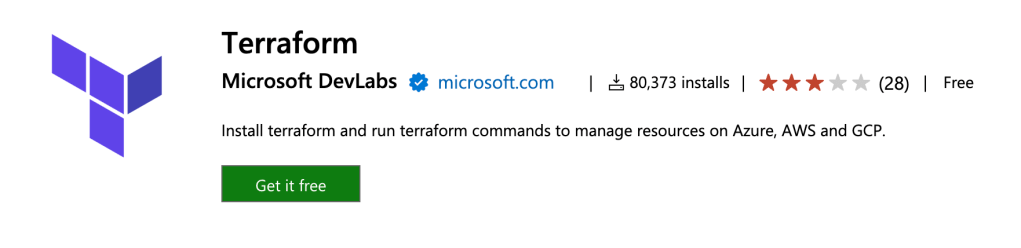
We will need to install the “AWS for Terraform” Service connection into your Visual Studio Organisation from the Azure market place (https://marketplace.visualstudio.com/items?itemName=ms-devlabs.custom-terraform-tasks). Click on the green “Get it free” button.
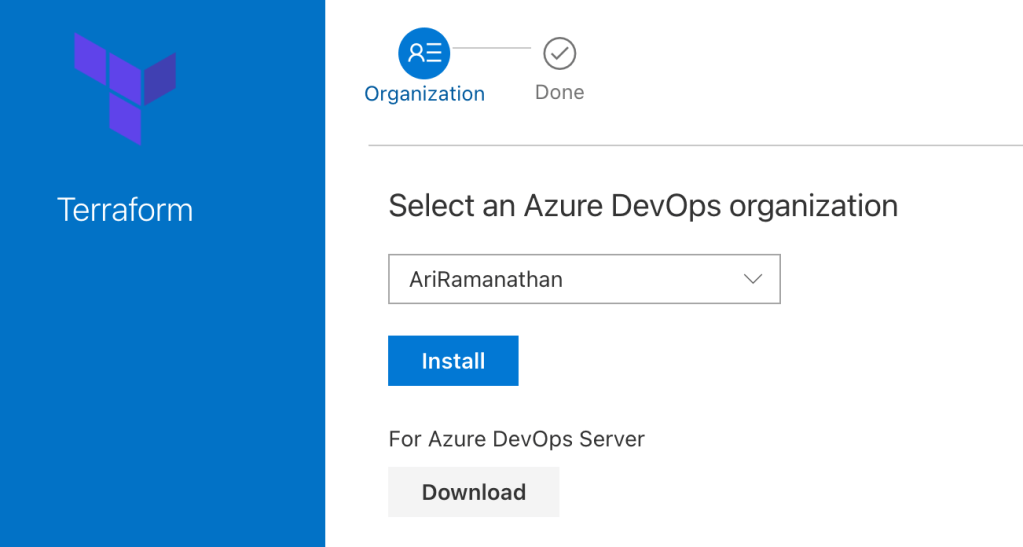
Select your Azure DevOps Org and click the blue Install button.
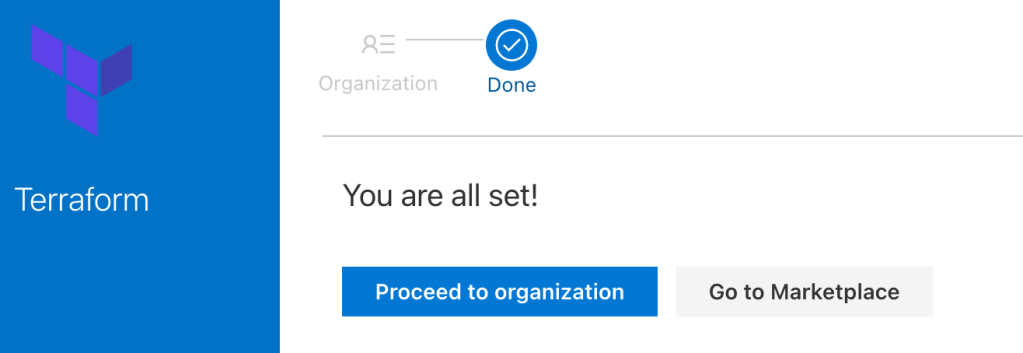
When completed click on the Proceed to organization button.
In your Azure DevOps Organization, create a new project.

In your project click on Project settings > Pipelines > Service connections > Create service connection.
Select AWS for Terraform from the list and click next
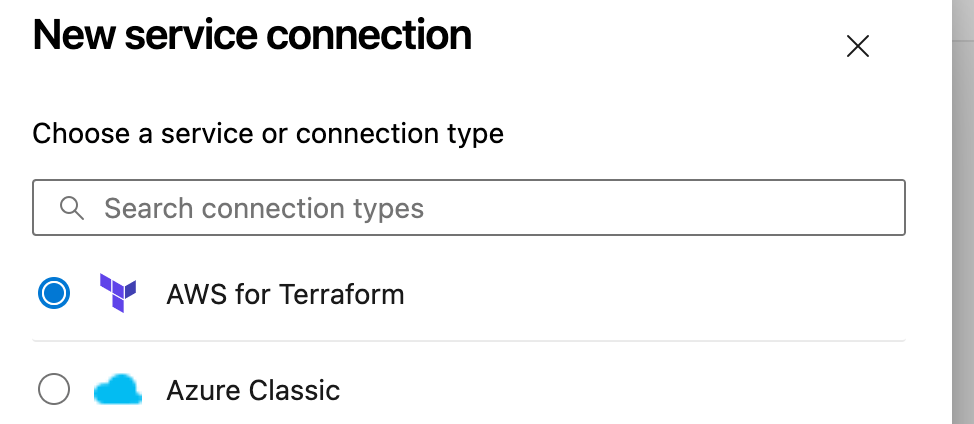
Enter your Access Key ID, Secret Access Key, region (ap-southeast-2), Service connection name, check the box “Grant access permission to all pipelines” and click save.

We will need to create an Azure Repo to upload our Terraform infrastructure code. This code will be deployed to our AWS accounts via Azure Pipelines. Click on Repos on the left-hand side menu, On the top menu select the dropdown and click on ‘+ New repository’.

Set the Reposity type as GIT and name your repo ‘demo-aws-orchestration’ and click the create button.
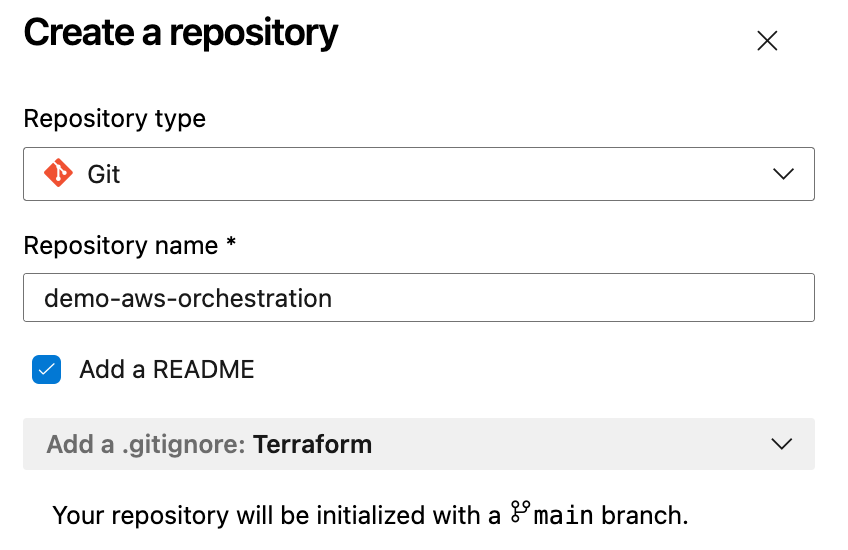
We will need to modify the files from the Github repository Download the files from github and make the changes to files in AzureRepo folder as detailed in the folder README.md file (there are 12 updates required!). Once files have been updated locally, commit the changes to your Azure Repo (demo-aws-orchestration in this example). The summary of the files to be committed to the Azure repo is as follows:
azure-pipelines.yml – Azure DevOps pipeline definition file
trigger:
  branches:
    include:
    - '*'

pool:
  vmImage: 'ubuntu-latest'

parameters:
  - name: terraform_workspace
    displayName: "Terraform Workspace"
    type: string
    default: default
    values:
    - default

variables:
- name: terraformVersion
  value: '1.2.7'
- name: service_connection_name
  value: 'AWS-Terraform-Shared-Services'
- name: terraform_backend_state_bucket
  value: 'terraform-state-bucket-XXXX-ss-XXXX'
- name: terraform_backend_state_key
  value: 'demo-azuredevops-aws-orchestration'

stages:

## Plan Stage - Automatically triggers pipeline on repo commits
- stage: Plan

  jobs:
  - job: Plan
    steps:
    - checkout: self
      persistCredentials: true
      lfs: true

    - task: TerraformInstaller@0
      displayName: Install Terraform
      inputs:
        terraformVersion: '$(terraformVersion)'


    - task: TerraformTaskV1@0
      displayName: Run Terraform Init
      inputs:
        provider: 'aws'
        command: 'init'
        backendServiceAWS: $(service_connection_name)
        backendAWSBucketName: $(terraform_backend_state_bucket)
        backendAWSKey: $(terraform_backend_state_key)

    - task: TerraformTaskV1@0
      displayName: Run Terraform Plan
      inputs:
        provider: 'aws'
        command: 'plan'
        environmentServiceNameAWS: $(service_connection_name)

## Approvals Stage - omitted for demo simplicity

## Deployment Stage -

- stage: Deployment
  jobs:
  - job: Deployment
    steps:
    - checkout: self
      persistCredentials: true
      lfs: true

    - task: TerraformInstaller@0
      displayName: Install Terraform
      inputs:
        terraformVersion: '$(terraformVersion)'

    - task: TerraformTaskV1@0
      displayName: Run Terraform Init
      inputs:
        provider: 'aws'
        command: 'init'
        backendServiceAWS: $(service_connection_name)
        backendAWSBucketName: $(terraform_backend_state_bucket)
        backendAWSKey: $(terraform_backend_state_key)

    - task: TerraformTaskV1@0
      displayName: Run Terraform Apply
      inputs:
        provider: 'aws'
        command: 'apply'
        environmentServiceNameAWS: $(service_connection_name)

    - task: TerraformTaskV4@4
      displayName: show tf state (debugging)
      inputs:
        provider: 'aws'
        command: 'show'
        outputTo: 'console'
        outputFormat: 'default'
        environmentServiceNameAWS: $(service_connection_name)
backend.tf – Terraform state backend state definition file
terraform {
  backend "s3" {
    bucket         = "terraform-state-bucket-XXXX-ss-XXXX"
    key            = "demo-azuredevops-aws-orchestration"
    region         = "ap-southeast-2"
    dynamodb_table = "terraform-state-lock"
  }
}
data.tf – Terraform input data
data "aws_caller_identity" "current" {}
data "aws_region" "current" {}
providers.tf – provider for shared services account and account-z
terraform {
  required_version = ">= 1.2.5"
  required_providers {
    aws = {
      source  = "hashicorp/aws"
      version = "~> 4.22.0"
    }
  }
}

provider "aws" {
  region = "ap-southeast-2"
  assume_role {
    role_arn = "arn:aws:iam::XXXX-ss-XXXX:role/tf-deployment"

  }

  default_tags {
    tags = {
      deployedBy     = "Terraform"
      terraformStack = "Shared-Infra"
    }
  }
}

provider "aws" {
  alias  = "accountz"
  region = "ap-southeast-2"
  assume_role {
    role_arn = "arn:aws:iam::XXXX-az-XXXX:role/tf-deployment"
  }

  default_tags {
    tags = {
      deployedBy     = "Terraform"
      terraformStack = "AccountZ-Infra"
    }
  }
}
s3.tf – S3 bucket definition for shared services account and account-1
#--------------------------------------------------------------------------
# Test bucket in shared services
#--------------------------------------------------------------------------
resource "aws_s3_bucket" "bucket_shared_services" {
  provider = aws
  bucket   = "test-bucket-${data.aws_caller_identity.current.account_id}-shared-services"

  tags = {
    Name = "test-bucket-${data.aws_caller_identity.current.account_id}-shared-services"
  }
}

resource "aws_s3_bucket_versioning" "test_bucket_shared_services_versioning" {
  provider = aws
  bucket   = aws_s3_bucket.bucket_shared_services.id
  versioning_configuration {
    status = "Enabled"
  }
}

resource "aws_s3_bucket_ownership_controls" "test_bucket_shared_services_acl_ownership" {
  provider = aws
  bucket   = aws_s3_bucket.bucket_shared_services.id
  rule {
    object_ownership = "BucketOwnerEnforced"
  }
}

resource "aws_s3_bucket_server_side_encryption_configuration" "test_bucket_shared_services_encryption" {
  provider = aws
  bucket   = aws_s3_bucket.bucket_shared_services.id

  rule {
    apply_server_side_encryption_by_default {
      sse_algorithm     = "aws:kms"
      kms_master_key_id = "arn:aws:kms:${data.aws_region.current.name}:${data.aws_caller_identity.current.account_id}:key/${var.orgs3encryptionkey}"
    }
  }
}

#--------------------------------------------------------------------------
# Test bucket in Account Z
#--------------------------------------------------------------------------

resource "aws_s3_bucket" "bucket_accountz" {
  provider = aws.accountz
  bucket   = "test-bucket-${var.accountzid}-accountz"

  tags = {
    Name = "test-bucket-${var.accountzid}-accountz"
  }
}

resource "aws_s3_bucket_versioning" "test_bucket_accountz_versioning" {
  provider = aws.accountz
  bucket   = aws_s3_bucket.bucket_accountz.id
  versioning_configuration {
    status = "Enabled"
  }
}

resource "aws_s3_bucket_ownership_controls" "test_bucket_acountz_acl_ownership" {
  provider = aws.accountz
  bucket   = aws_s3_bucket.bucket_accountz.id
  rule {
    object_ownership = "BucketOwnerEnforced"
  }
}

resource "aws_s3_bucket_server_side_encryption_configuration" "test_bucket_accountz_encryption" {
  provider = aws.accountz
  bucket   = aws_s3_bucket.bucket_accountz.id

  rule {
    apply_server_side_encryption_by_default {
      sse_algorithm     = "aws:kms"
      kms_master_key_id = "arn:aws:kms:${data.aws_region.current.name}:${data.aws_caller_identity.current.account_id}:key/${var.orgs3encryptionkey}"
    }
  }
}
We will initialise a new pipeline based on the Azure pipeline definition file uploaded earlier to the Azure Repo. On the left-hand menu click on Pipelines and click on Create Pipeline.
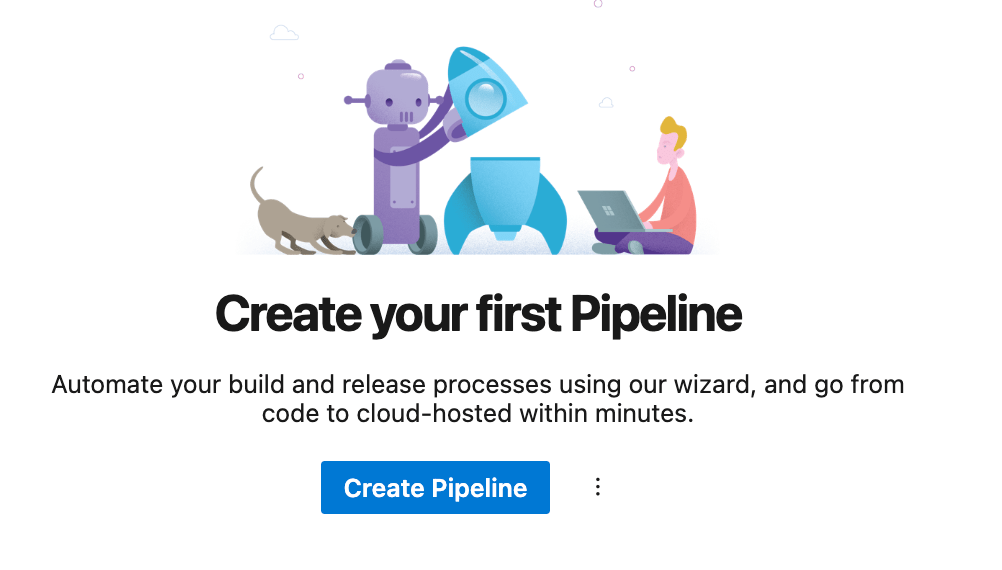
Select “Azure Repos Git”.
Select your repo.

This will show your pipeline configuration. Click the Run button.

On completion of the Azure pipeline you will end up with a S3 test bucket in your shared services account and a S3 test bucket in account Z.
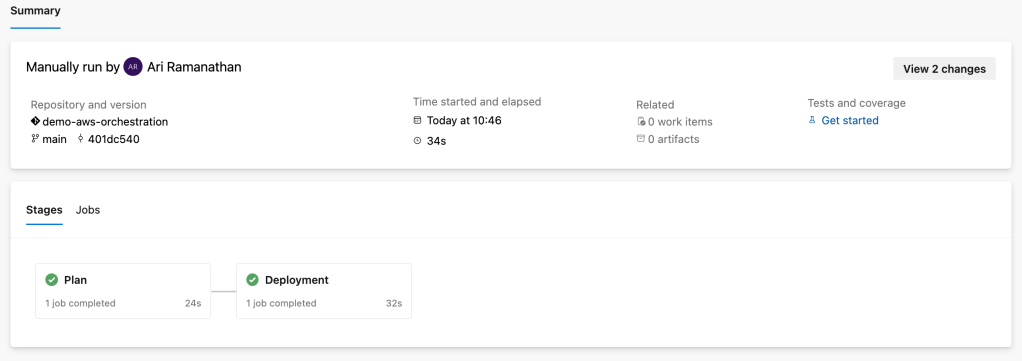
If you make future changes in your local repo and push these changes to the Azure Repo the pipeline will automatically run.
Hopefully, this blog has given you a basic understanding of orchestrating AWS resources via Azure DevOps & Terraform. There are many ways to do this but I think this method is the simplest way to get started using Azure DevOps and Terraform. I still prefer to use AWS CodeCommit and AWS CodePipeline, but many customers want to store their code in AzureDevOps.
 AWS Cloud DevOps