

This blog demonstrates using AWS Attribute-Based Access Control (ABAC) to control access to AWS EC2 instances by changing Azure Entra ID user attributes. In Part 1 (https://devbuildit.com/2024/01/14/abac-for-aws-resource-access-part-1/), we set up the AWS Identity Center to accept AWS logins from Azure Entra ID users.
In our scenario, Alice works in the Engineering Department and Bob works in the Security Department. Each department has an AWS EC2 instance that they manage (Alice’s department owns EC2 instance ENG03, and Bob’s department owns EC2 instance Security44). Both users should be allowed to see each other’s EC2 instances but not be able to stop and start each other’s instances. EC2 instances owned by a department can only be stopped and started by users within that Department. The user’s department is defined in the Azure Entra ID user record. AWS identity Center login using Azure Entra ID credentials was set up in Part 1. The overview of what we will set up in Part 2 is shown below.
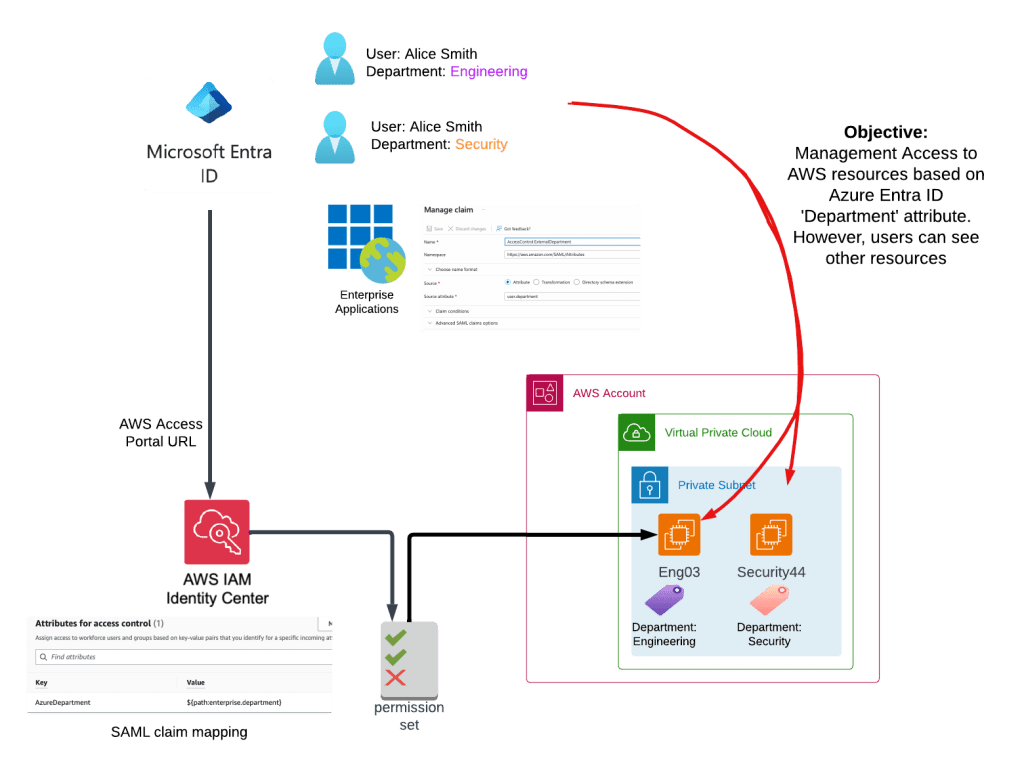
In this part, we will:
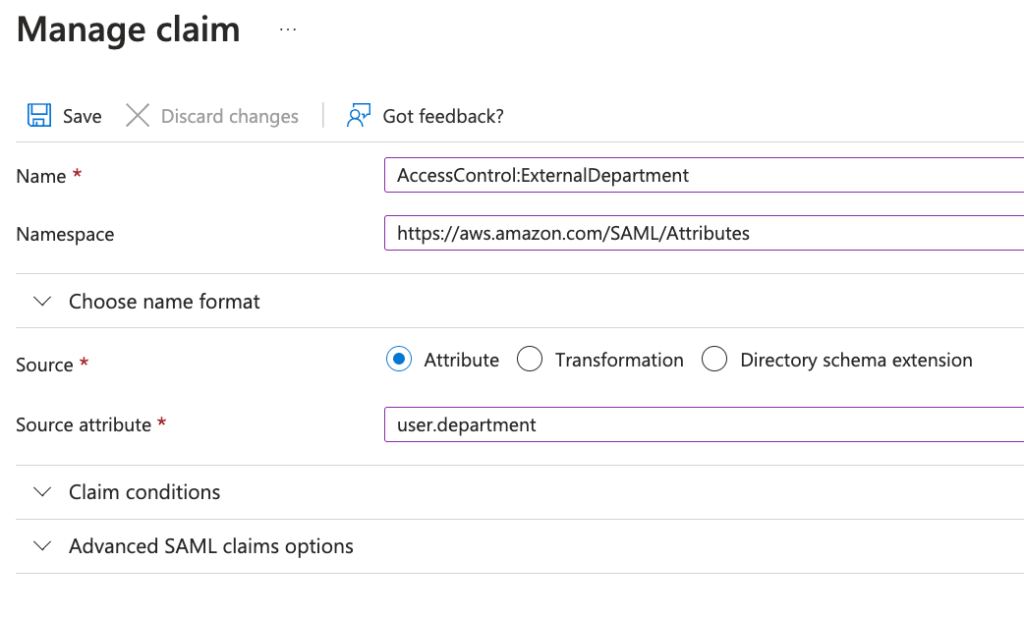
- Modify our Azure Entra ID Enterprise App to pass an additional SAML claim that contains the user’s department attribute
- Map the incoming SAML claim {user.department} to an AWS PrincipalTag called AzureDepartment
- Create a new SSO Permission set for attribute access
- Create EC2 instances for testing the restricted power on / power off
- Assign the new Permission Set to our AWS accounts and test users
Firstly, log onto the Azure portal and access the settings of the Enterprise Application we created in part 1 (in my case an application labelled demo-aws).

Click on Single sign-on.

Click on the Edit icon in the Attributes and Claims section.

Click on the “+ Add” icon.
Populate the Manage Claim dialogue box as shown below. Note the source attribute field is a selection box. Click the save icon.
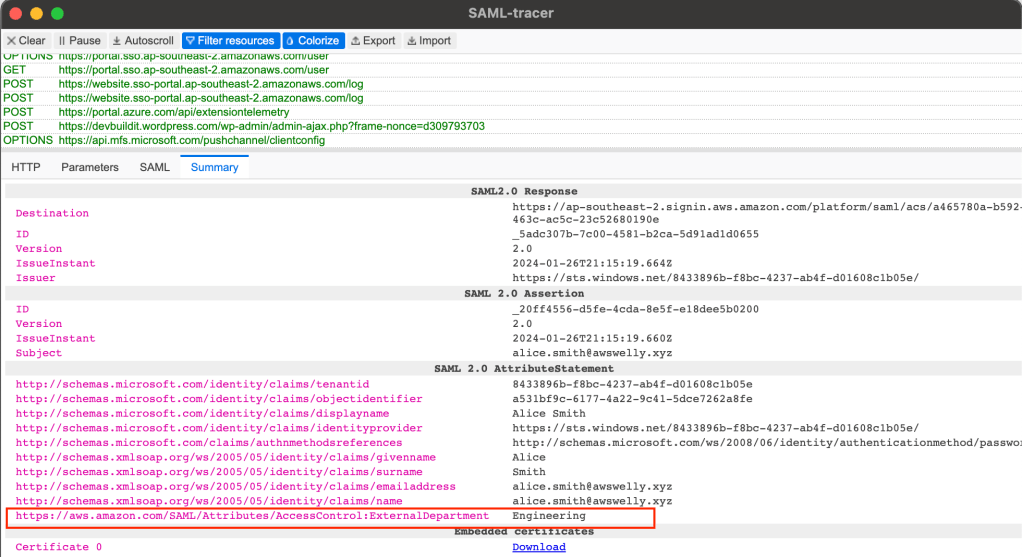
That completes the Azure set up. You can test that the new claim is being passed by using a Chrome extension ‘SAML-tracer’ as shown below.
Now we need to create AWS resources for testing. You can use the Terraform code from https://github.com/arinzl/aws-abac-part-2 to deploy the required components.
Summary of Terraform code:
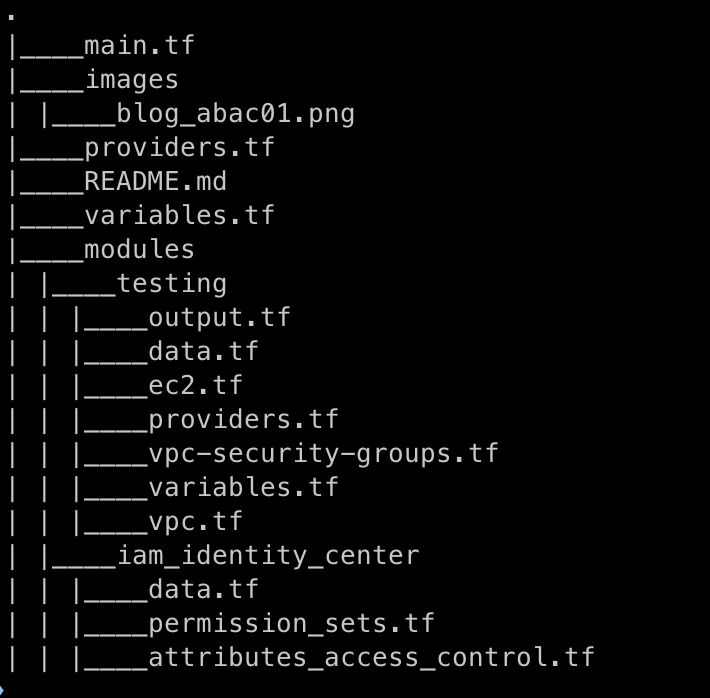
Update file ./variables to change the region and CIDR range of the VPC.
File ./main.tf will deploy two Terraform modules:
- IAM Identity Centre components (Permission sets and Attribute mapping)
- Testing resources (VPC, subnet and tagged EC2 instances)
IAM Identity Center module files:
data.tf – Read components from part 1 and get AWS AccountID and region details.
data "aws_organizations_organization" "org" {}
data "aws_ssoadmin_instances" "this" {}

data "aws_region" "current" {}
data "aws_caller_identity" "current" {}

locals {
  sso_instance_arn      = tolist(data.aws_ssoadmin_instances.this.arns)[0]
  sso_identity_store_id = tolist(data.aws_ssoadmin_instances.this.identity_store_ids)[0]
  account_ids           = { for a in data.aws_organizations_organization.org.accounts : a.name => a.id }
}
attributes_access_control.tf – Attribute mapping.
resource "aws_ssoadmin_instance_access_control_attributes" "attributes" {
  instance_arn = local.sso_instance_arn
  attribute {
    key = "AzureDepartment"
    value {
      source = ["$${path:enterprise.department}"]
    }
  }
}
permission_sets.tf – Permission set of Azure users.
locals {
  permission_sets = {

    "ABACdemo" : {
      "description" : "ABAC blog demo"
      "managed_policies" : []
      "inline_policies" : [
        {
          Sid    = "AllowAccountPrinciplesToRead"
          Effect = "Allow"
          Action = [
            "ec2:DescribeInstances",
            "ec2:DescribeImages",
            "ec2:DescribeTags",
            "ec2:DescribeSnapshots"
          ]
          Resource = "*"
        },
        {
          Sid    = "PrincipalTagManagement"
          Effect = "Allow"
          Action = [
            "ec2:startInstances",
            "ec2:stopInstances"
          ]
          Resource = "*"


          Condition = {
            "StringEquals" = {
              "aws:ResourceTag/Department" = "$${aws:PrincipalTag/AzureDepartment}"
            }
          }

        }
      ]
    }
  }
}


resource "aws_ssoadmin_permission_set" "this" {
  for_each         = local.permission_sets
  instance_arn     = local.sso_instance_arn
  name             = each.key
  description      = each.value.description
  session_duration = lookup(each.value, "session_duration", "PT8H")
}

resource "aws_ssoadmin_managed_policy_attachment" "this" {
  for_each = merge([
    for k, v in local.permission_sets : {
      for i, p in v.managed_policies : "${k}_${i}" => {
        set    = k
        policy = p
      } if p != ""
    } if lookup(v, "managed_policies", null) != null
  ]...)
  instance_arn       = local.sso_instance_arn
  managed_policy_arn = each.value.policy
  permission_set_arn = aws_ssoadmin_permission_set.this[each.value.set].arn
}

resource "aws_ssoadmin_permission_set_inline_policy" "this" {
  for_each           = { for k, v in local.permission_sets : k => v if length(lookup(v, "inline_policies", [])) > 0 }
  instance_arn       = local.sso_instance_arn
  permission_set_arn = aws_ssoadmin_permission_set.this[each.key].arn
  inline_policy = jsonencode({
    Version = "2012-10-17"
    Statement = [for p in each.value.inline_policies :
      merge({
        Sid    = p.Sid
        Effect = p.Effect
        Action = p.Action
        },
        lookup(p, "Resource", null) != null ? { Resource = p.Resource } : {},
        lookup(p, "NotResource", null) != null ? { NotResource = p.NotResource } : {},
      lookup(p, "Condition", null) != null ? { Condition = p.Condition } : {})
    ]
  })
}
Testing resources module files:
data.tf – Get AWS AccountID and region details.
data "aws_availability_zones" "available" {}
data "aws_region" "current" {}
data "aws_caller_identity" "current" {}

data "aws_ami" "amzn-linux-2023-ami" {
  most_recent = true
  owners      = ["amazon"]

  filter {
    name   = "name"
    values = ["al2023-ami-2023.*-x86_64"]
  }
}
vpc-security-groups.tf – Default security group enhancement.
resource "aws_default_security_group" "default" {
  # Defining here to remove default rules
  vpc_id = aws_vpc.main.id
}
vpc.tf – vpc and subnet.
resource "aws_vpc" "main" {
  tags = {
    Name = "demo"
  }
  cidr_block = var.cidr_block_module

  enable_dns_support   = true
  enable_dns_hostnames = true
}

resource "aws_subnet" "private" {
  count                   = length(data.aws_availability_zones.available.names)
  vpc_id                  = aws_vpc.main.id
  cidr_block              = cidrsubnet(aws_vpc.main.cidr_block, 8, 16 + count.index)
  availability_zone       = data.aws_availability_zones.available.names[count.index]
  map_public_ip_on_launch = false

  tags = {
    Name : "$demo-private-${data.aws_availability_zones.available.names[count.index]}"
  }
}

resource "aws_route_table_association" "private" {
  count = length(data.aws_availability_zones.available.names)

  subnet_id      = aws_subnet.private[count.index].id
  route_table_id = aws_route_table.private[count.index].id
}

resource "aws_route_table" "private" {
  count = length(data.aws_availability_zones.available.names)
  tags = {
    Name = "demo-private-${data.aws_availability_zones.available.names[count.index]}"
  }

  vpc_id = aws_vpc.main.id
}
EC2.tf – EC2 Instances with Department Tag populated.
resource "aws_instance" "engineering_server" {
  ami           = data.aws_ami.amzn-linux-2023-ami.id
  instance_type = "t2.micro"
  subnet_id     = aws_subnet.private.id

  tags = {
    Name       = "Eng03",
    Department = "Engineering"
  }
}
resource "aws_instance" "security_server" {
  ami           = data.aws_ami.amzn-linux-2023-ami.id
  instance_type = "t2.micro"
  subnet_id     = aws_subnet.private.id
  tags = {
    Name       = "Security44",
    Department = "Security"
  }
}
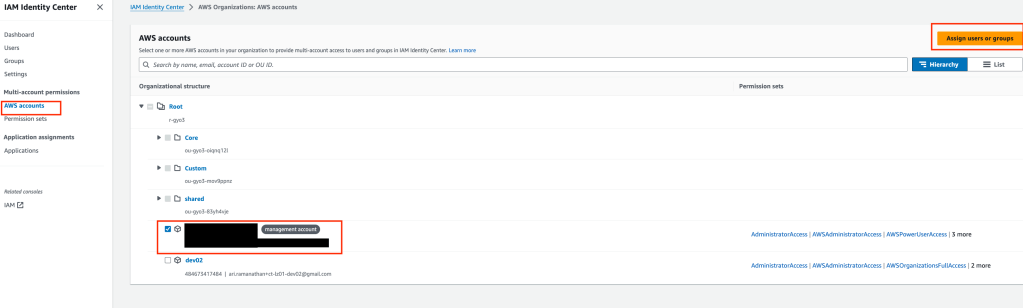
After deploying the Terraform code you will need to assign Azure Entra ID test users in AWS Identity Center permission set “ABACdemo” to the AWS Account with the EC2 instances. Below is a series of screenshots showing this process.
Open the AWS Identity Center service screen and click on Accounts. Expand Organization tree and select the account the EC2 instances were deployed into. Click on the “Assign user or groups” button.
Click on User, select the required users to assign the permission set to and click the next button.

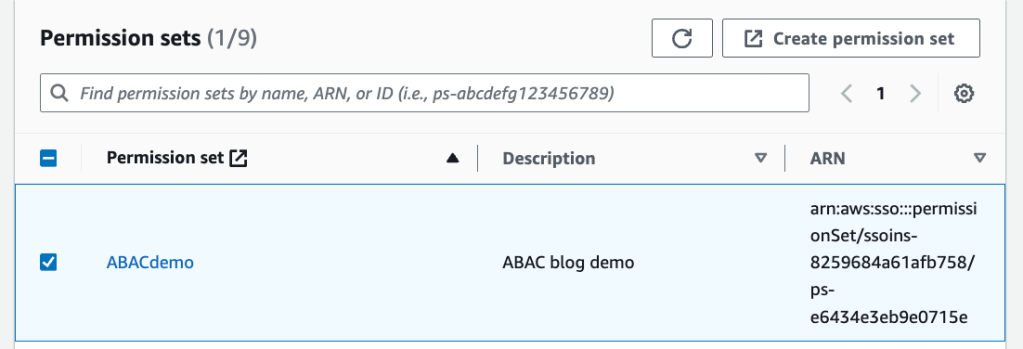
Select Permission set “ABACdemo” and click next
Confirm all the correct users and Permission Sets were selected and click the submit button.

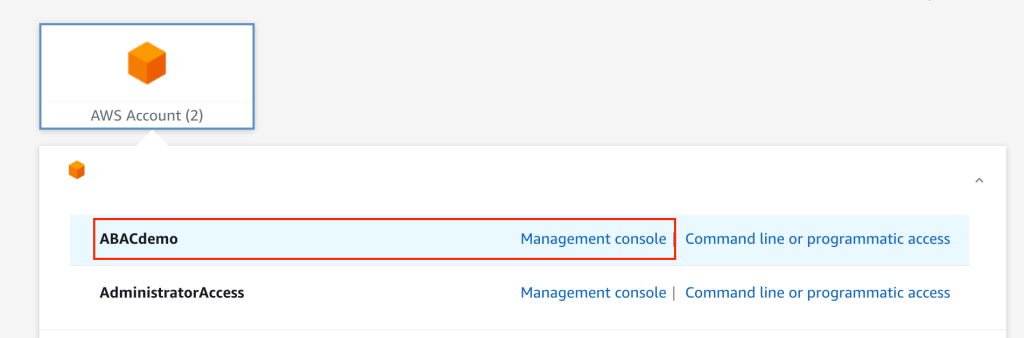
Once this is completed, log into your AWS Identity Center access portal as an Engineering Department user (Alice in my case) and select permission set ‘ABACdemo’ Management Console.
Navigate to the EC2 service console (there will be a few errors in the console as we have restricted this user with a tight permission set). Stop the EC2 instance Eng03. The EC2 instance Eng03 will shut down as expected. Then request to shut down EC2 instance Security44 which belongs to the Security Department. The console will throw an error and advise you do not have permission to conduct the action (see the two notifications below). This confirms that a member of the Engineering department (Alice in our case) can stop and start their own EC2 instance (Eng03) but not of another department, in this case, the Security Department (Security44).

Hopefully, this tutorial series has demonstrated one of the advantages of using ABAC over RBAC. ABAC is not a replacement for RBAC and I imagine most organisations will adopt a hybrid approach in regards to access control.
Lastly, thanks to my colleague William Khoo (https://www.linkedin.com/in/wtkhoo/). William found the use case and helped me with the discovery and testing.
 AWS Cloud DevOps