

This blog is a continuation of the Computer Vision theme. I recently worked on a Computer Vision project where my tools required access to a Graphics Processing Unit (GPU) to accelerate video processing. The goal was to analyse video files, detect faces and blur the detected faces. While many Python tools can blur faces, they require access to a GPU for optimal performance.
Previously, we utilised AWS Fargate to provide the compute resources to run our tasks. However, AWS Fargate does not support GPU access, so we need to use Elastic Container Service (ECS) EC2 hosts equipped with GPU hardware in our cluster. These EC2 hosts must include GPU drivers, such as NVIDIA drivers. Fortunately, AWS provides an AMI optimised for ECS with GPU drivers pre-installed. For this blog, we will use ‘G4DN’ instance types, which include a single GPU and 4 vCPUs. Hopefully, these instance types are available in your region.
In this tutorial, we will launch an ECS task on an EC2-based ECS cluster and detect whether a GPU is present using a simple Python script. The task will run for two minutes to ensure logs are written to an AWS CloudWatch Log Group. I strongly recommend reading the previous blog posts on AWS Fargate (https://devbuildit.com/2024/08/13/aws-fargate-101/) and Computer Vision (https://devbuildit.com/2024/09/15/computer-vision-intro/) for background information.
Note: We will deploy AWS EC2 G4DN spot instances. You may need to check and adjust your account service quotas for “All G and VT Spot Instance Requests” if you wish to deploy the associated code. The default AWS account quota limit is 0! You can check your quota using the AWS CLI with the following command, substituting <your region> with your AWS region:
aws service-quotas get-service-quota --service-code ec2 --quota-code L-3819A6DF --region <your region>
You can request an increase to your service quota via the console or update the Terraform code to use ‘on-demand’ instances instead of spot instance types in file ecs_autoscaling_group.tf. I requested my service quota to be increased to 12 units (enough for 3 EC2 instances with 4 vCPUs).
Sections of this Blog Tutorial:
- Deploy VPC infrastructure
- Deploy ECS Cluster, ASG, ECS task definition, CloudWatch Log groups & ECR repository
- Create a Docker image that starts a Python script to detect the GPU and upload the Docker image to ECR
- Testing – create an ECS task and verify results in Cloudwatch
The code for the deployment can be found here (https://github.com/arinzl/aws-ecs-with-gpu).
1. VPC Infrastructure deployment
The ECS infrastructure operates on an underlying AWS network, including a Virtual Private Cloud (VPC), routing, and other associated components. The code for setting up the network components is located in the modules/network subfolder. This section focuses on deploying the base network required for the ECS cluster.
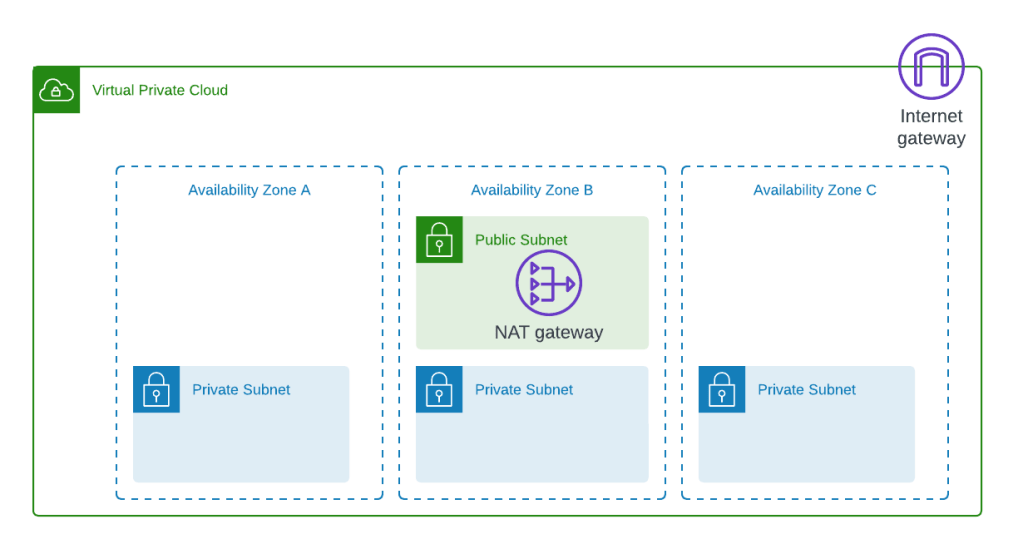
To keep this tutorial concise, I will not delve into the network Terraform files; instead, I will focus on the ECS and supporting infrastructure files.
2. ECS Infrastructure deployment
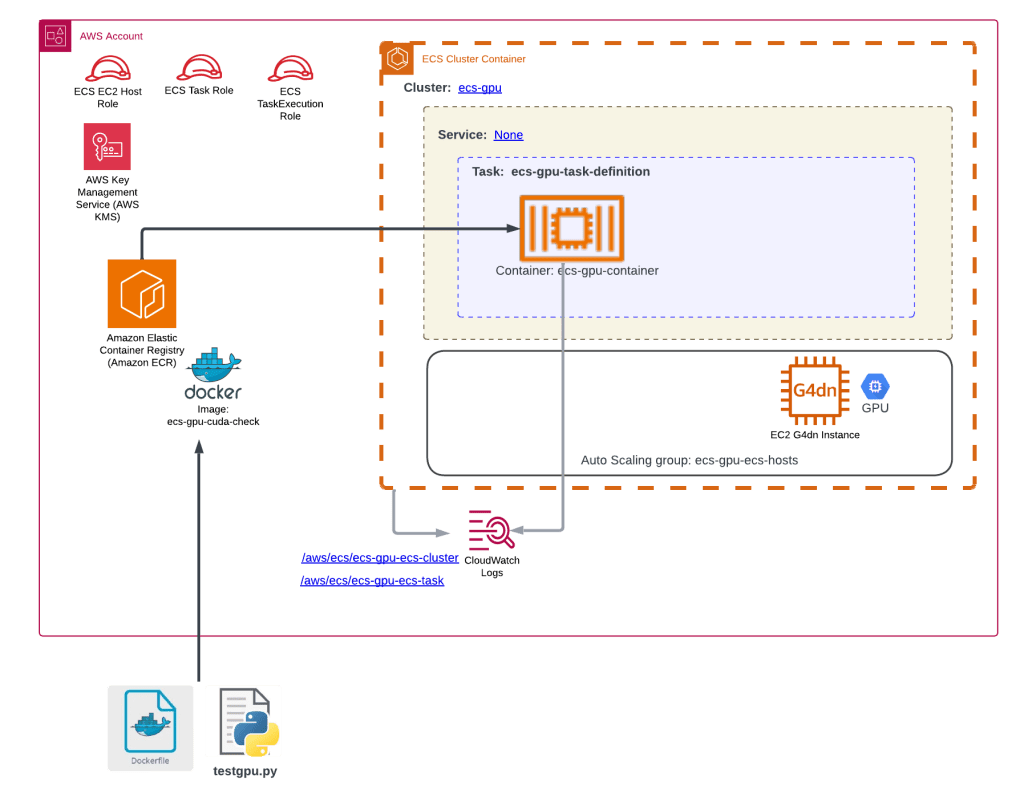
The files associated with the ECS Cluster and associated services are located in the modules/ecs-gpu sub-folder. The main components are shown below:
File details (Terraform root folder)
modules_ecs_gpu.tf – ECS module definition
module "ecs" {
  source = "./modules/ecs-gpu"

  vpc_id               = module.networking.vpc-id
  asg_desired_capacity = var.ecs_gpu_cluster_asg_desired_size[terraform.workspace]

}
providers.tf – root module Terraform provider file
terraform {
  required_version = ">= 1.2.5"
  required_providers {
    aws = {
      source  = "hashicorp/aws"
      version = "~> 4.22"
    }
  }
}

provider "aws" {
  region = var.region
}
variables.tf – root module Terraform variables file (update region to suit your environment)
variable "region" {
  default = "ap-southeast-2"
  type    = string
}

variable "vpc_cidr_block_root" {
  type        = map(string)
  description = "VPC CIDR ranges per terraform workspace"
  default = {
    "default" : "10.32.0.0/16",
    "prod" : "10.16.0.0/16",
    "non-prod" : "10.32.0.0/16",
  }
}

variable "app_name" {
  default = "ecs-gpu"
  type    = string
}

variable "ecs_gpu_cluster_asg_desired_size" {
  type        = map(number)
  description = "Number of desired ecs instances in ecs cluster in auto scaling group"
  default = {
    "prod"     = 2,
    "non-prod" = 1,
    default    = 1,
  }
}
File details (Terraform modules/ecs-gpu subfolder)
cloudwatch.tf – ECS Cloudwatch Log Groups
resource "aws_cloudwatch_log_group" "ecs_cluster" {

  name = "/aws/ecs/${var.app_name}-ecs-cluster"

  kms_key_id        = aws_kms_key.kms_key.arn
  retention_in_days = var.cloudwatch_log_retention

  tags = {
    Name = "${var.app_name}-ecs-cluster"
  }
}

resource "aws_cloudwatch_log_group" "ecs_task" {
  name = "/aws/ecs/${var.app_name}-ecs-task"

  kms_key_id        = aws_kms_key.kms_key.arn
  retention_in_days = var.cloudwatch_log_retention

  tags = {
    Name = "${var.app_name}-ecs-task"
  }
}
data.tf – Terraform data objects
data "aws_caller_identity" "current" {}

data "aws_region" "current" {}

data "aws_ami" "ecs_host" {
  owners      = ["amazon"]
  most_recent = true

  filter {
    name   = "name"
    values = ["amzn2-ami-ecs-gpu-hvm-2.0*"]
  }

  filter {
    name   = "architecture"
    values = ["x86_64"]
  }
}

data "aws_vpc" "network_vpc" {
  id = var.vpc_id
}

data "aws_subnets" "private" {
  depends_on = [
    data.aws_vpc.network_vpc
  ]
  filter {
    name   = "tag:Name"
    values = ["${var.app_name}-private*"]
  }
}
ecr.tf – Elastic Container Repository
resource "aws_ecr_repository" "repo" {

  name                 = var.app_name
  image_tag_mutability = "MUTABLE"

  image_scanning_configuration {
    scan_on_push = true
  }

  encryption_configuration {
    encryption_type = "KMS"
    kms_key         = aws_kms_key.kms_key.arn
  }
}

resource "aws_ecr_lifecycle_policy" "repo" {
  repository = aws_ecr_repository.repo.name

  policy = <<-EOF
  {
      "rules": [
          {
              "rulePriority": 1,
              "description": "Retain only the last ${var.image_retention_unstable} unstable images",
              "selection": {
                  "tagStatus": "tagged",
                  "tagPrefixList": [
                    "unstable-"
                  ],
                  "countType": "imageCountMoreThan",
                  "countNumber": ${var.image_retention_unstable}
              },
              "action": {
                  "type": "expire"
              }
          },
          {
              "rulePriority": 2,
              "description": "Do not retain more than one untagged image",
              "selection": {
                  "tagStatus": "untagged",
                  "countType": "imageCountMoreThan",
                  "countNumber": 1
              },
              "action": {
                  "type": "expire"
              }
          },
          {
              "rulePriority": 3,
              "description": "Retain last 5 stable releases",
              "selection": {
                  "tagStatus": "tagged",
                  "tagPrefixList": [
                    "v"
                  ],
                  "countType": "imageCountMoreThan",
                  "countNumber": 5
              },
              "action": {
                  "type": "expire"
              }
          }
      ]
  }
  EOF
}
ecs_autoscaling_group.tf – AutoScaling Group for ECS Cluster hosts
resource "aws_autoscaling_group" "ecs_hosts" {
  name = "${var.app_name}-ecs-hosts"

  max_size              = 1
  min_size              = 0
  desired_capacity      = var.asg_desired_capacity
  desired_capacity_type = "units"
  force_delete          = true
  vpc_zone_identifier   = data.aws_subnets.private.ids
  max_instance_lifetime = 60 * 60 * 24 * 7 * 2 # 2 weeks

  mixed_instances_policy {
    instances_distribution {
      on_demand_base_capacity                  = 0
      on_demand_percentage_above_base_capacity = 0
      on_demand_allocation_strategy            = "lowest-price"
      spot_allocation_strategy                 = "lowest-price"
      spot_instance_pools                      = 1
    }

    launch_template {
      launch_template_specification {
        launch_template_id = aws_launch_template.ecs_host.id
        version            = "$Latest"
      }

      override {

        instance_requirements {
          memory_mib {
            min = 16384
            max = 32768
          }

          vcpu_count {
            min = 4
            max = 8
          }

          instance_generations = ["current"]

          accelerator_types         = ["gpu"]
          accelerator_manufacturers = ["nvidia"]
          allowed_instance_types    = ["g4*"]

          # gpu count
          accelerator_count {
            min = 1
            max = 4
          }
        }
      }

    }
  }

  instance_refresh {
    strategy = "Rolling"
  }


  tag {
    key                 = "Name"
    value               = "${var.app_name}-ECSHost"
    propagate_at_launch = true
  }
}

resource "aws_launch_template" "ecs_host" {
  name_prefix = "${var.app_name}-ecs-host-"
  image_id    = data.aws_ami.ecs_host.image_id

  instance_type = "g4dn.xlarge"

  user_data = base64encode(local.ecs_userdata)

  iam_instance_profile {
    name = aws_iam_instance_profile.ecs_host.name
  }

  block_device_mappings {
    device_name = "/dev/xvda"

    ebs {
      delete_on_termination = true
      volume_size           = 30
      volume_type           = "gp3"
    }
  }

  vpc_security_group_ids = [aws_security_group.ecs_host.id]

  metadata_options {
    http_endpoint               = "enabled"
    http_tokens                 = "required"
    http_put_response_hop_limit = 1
    instance_metadata_tags      = "enabled"
  }
}

locals {
  ecs_userdata = <<-EOF
    #!/bin/bash

    cat <<'DOF' >> /etc/ecs/ecs.config
    ECS_CLUSTER=${aws_ecs_cluster.main.name}
    ECS_AVAILABLE_LOGGING_DRIVERS=["json-file","awslogs"]
    ECS_LOG_DRIVER=awslogs
    ECS_LOG_OPTS={"awslogs-group":"/aws/ecs/${var.app_name}-ecs-cluster","awslogs-region":"${data.aws_region.current.name}"}
    ECS_LOGLEVEL=info
    DOF
  EOF
}
ecs_cluster.tf – ECS cluster setup
resource "aws_ecs_cluster" "main" {
  name = "${var.app_name}-cluster"

  configuration {
    execute_command_configuration {
      logging    = "OVERRIDE"
      kms_key_id = aws_kms_key.kms_key.arn

      log_configuration {
        cloud_watch_encryption_enabled = true
        cloud_watch_log_group_name     = aws_cloudwatch_log_group.ecs_cluster.name
      }
    }
  }


  setting {
    name  = "containerInsights"
    value = "enabled"
  }
}
ecs_task.tf – ECS task definition
resource "aws_ecs_task_definition" "main" {
  family                   = "${var.app_name}-task-definition"
  network_mode             = "awsvpc"
  requires_compatibilities = ["EC2"]
  cpu                      = 4096
  memory                   = 15731
  task_role_arn            = aws_iam_role.ecs_task_role.arn
  execution_role_arn       = aws_iam_role.ecs_task_execution_role.arn

  container_definitions = jsonencode([
    {
      name      = "${var.app_name}-container"
      image     = "${aws_ecr_repository.repo.repository_url}:latest"
      essential = true
      cpu       = var.container_cpu
      memory    = var.container_memory
      environment = [
        {
          name  = "TZ",
          value = "Pacific/Auckland"
        },
        {
          "name" : "ENVIRONMENT",
          "value" : terraform.workspace
        },
        {
          "name" : "AWS_REGION",
          "value" : data.aws_region.current.name
        },
        {
          "name" : "APPLICATION",
          "value" : var.app_name
        },
      ]

      logConfiguration = {
        "logDriver" = "awslogs"
        "options" = {
          "awslogs-group"         = aws_cloudwatch_log_group.ecs_task.name,
          "awslogs-stream-prefix" = "ecs",
          "awslogs-region"        = data.aws_region.current.name
        }
      }
      mountPoints = [
      ]
      resourceRequirements = [
        {
          type  = "GPU",
          value = "1"
        }
      ]

    }
  ])

  tags = {
    Name = "${var.app_name}-task"
  }
}
iam_role.tf – three (EC2 host, ECS Task & ECS TaskExecution) IAM roles
#### ECS EC2 Host Role ####
resource "aws_iam_role" "ecs_host" {
  name               = "${var.app_name}-ecs-host"
  assume_role_policy = data.aws_iam_policy_document.ecs_host_policy.json

  managed_policy_arns = [
    "arn:aws:iam::aws:policy/service-role/AmazonEC2ContainerServiceforEC2Role",
    "arn:aws:iam::aws:policy/AmazonSSMManagedInstanceCore"
  ]

  #permissions_boundary = "arn:aws:iam::${data.aws_caller_identity.current.account_id}:policy/${var.devops-role-permission-boundary-name}"
}

data "aws_iam_policy_document" "ecs_host_policy" {
  statement {
    principals {
      type        = "Service"
      identifiers = ["ec2.amazonaws.com"]
    }

    actions = ["sts:AssumeRole"]
  }
}

resource "aws_iam_instance_profile" "ecs_host" {
  name = aws_iam_role.ecs_host.name
  role = aws_iam_role.ecs_host.id
}


#### ECS Common Task & TaskExecution Roles #####

data "aws_iam_policy_document" "ecs_assume_policy" {
  statement {
    principals {
      type        = "Service"
      identifiers = ["ecs-tasks.amazonaws.com"]
    }

    actions = ["sts:AssumeRole"]
  }
}

#### ECS TaskExecution Role #####
resource "aws_iam_role" "ecs_task_execution_role" {
  name               = "${var.app_name}-ecsTaskExecutionRole"
  assume_role_policy = data.aws_iam_policy_document.ecs_assume_policy.json
  #permissions_boundary = "arn:aws:iam::${data.aws_caller_identity.current.account_id}:policy/${var.devops-role-permission-boundary-name}"

  managed_policy_arns = [
    "arn:aws:iam::aws:policy/service-role/AmazonECSTaskExecutionRolePolicy",
    "arn:aws:iam::aws:policy/AmazonEC2ContainerRegistryReadOnly"
  ]
}

#### ECS Task Role #####

resource "aws_iam_role" "ecs_task_role" {
  name               = "${var.app_name}-ecsTaskRole"
  assume_role_policy = data.aws_iam_policy_document.ecs_assume_policy.json
  #permissions_boundary = "arn:aws:iam::${data.aws_caller_identity.current.account_id}:policy/${var.devops-role-permission-boundary-name}"
}


resource "aws_iam_role_policy" "ecs_task" {
  name   = aws_iam_role.ecs_task_role.name
  role   = aws_iam_role.ecs_task_role.id
  policy = data.aws_iam_policy_document.ecs_task.json
}


data "aws_iam_policy_document" "ecs_task" {
  #checkov:skip=CKV_AWS_111:Unable to restrict logs access further
  #checkov:skip=CKV_AWS_356:skipping on wildcard '*' resource usage for iam policy, need to TODO later

  statement {
    sid = "taskcwlogging"
    actions = [
      "ecr:GetAuthorizationToken",
      "ecr:BatchCheckLayerAvailability",
      "ecr:GetDownloadUrlForLayer",
      "ecr:BatchGetImage",
      "logs:CreateLogStream",
      "logs:PutLogEvents"
    ]
    resources = ["*"]
  }

  statement {
    sid    = "encryptionOps"
    effect = "Allow"
    actions = [
      "kms:Decrypt",
      "kms:GenerateDataKey*",
      "kms:Encrypt",
      "kms:ReEncrypt*",
      "kms:CreateGrant",
      "kms:DescribeKey",
    ]
    resources = [
      aws_kms_key.kms_key.arn,
    ]
  }

}
kms.tf – KMS key and alias
resource "aws_kms_key" "kms_key" {
  description             = "KMS for ecs gpu demo"
  policy                  = data.aws_iam_policy_document.kms_policy.json
  enable_key_rotation     = true
  deletion_window_in_days = 7
}

resource "aws_kms_alias" "kms_alias" {
  name          = "alias/ecs-gpu-demo"
  target_key_id = aws_kms_key.kms_key.id
}

data "aws_iam_policy_document" "kms_policy" {
  statement {
    sid    = "AccountUsage"
    effect = "Allow"

    principals {
      type        = "AWS"
      identifiers = ["arn:aws:iam::${data.aws_caller_identity.current.account_id}:root"]
    }

    actions   = ["kms:*"]
    resources = ["*"]
  }

  statement {
    sid    = "AllowUseForCWlogs"
    effect = "Allow"
    principals {
      type = "Service"
      identifiers = [
        "logs.${data.aws_region.current.name}.amazonaws.com",
      ]
    }
    actions = [
      "kms:Encrypt",
      "kms:Decrypt",
      "kms:ReEncrypt*",
      "kms:GenerateDataKey*",
      "kms:DescribeKey",
    ]
    resources = [
      "*"
    ]
    condition {
      test     = "ArnEquals"
      variable = "kms:EncryptionContext:aws:logs:arn"

      values = [
        "arn:aws:logs:${data.aws_region.current.name}:${data.aws_caller_identity.current.account_id}:log-group:*"
      ]
    }
  }

}
provider.tf – Terraform submodule provider
terraform {
  required_version = ">= 1.7"
  required_providers {
    aws = {
      source  = "hashicorp/aws"
      version = "~> 4.22"
    }
  }
}
security_groups.tf – ASG security group
resource "aws_security_group" "ecs_host" {
  name        = "${var.app_name}-ecs-host"
  description = "SG for the EC2 Autoscaling group running the ECS tasks"
  vpc_id      = data.aws_vpc.network_vpc.id

  egress {
    description = "Allow all outbound"
    from_port   = 0
    to_port     = 0
    protocol    = -1
    cidr_blocks = ["0.0.0.0/0"]
  }

  tags = {
    Name = "${var.app_name}-ecs-host"
  }
}
variables.tf – Terraform sub-module variables
variable "app_name" {
  description = "Name of application or project"
  type        = string
  default     = "ecs-gpu"
}

variable "image_retention_unstable" {
  description = "The number of unstable images to retain in the ECR repo"
  type        = number
  default     = 3
}

variable "cloudwatch_log_retention" {
  description = "Retention period for CloudWatch log groups in days"
  type        = number
  default     = 545
}

variable "vpc_id" {
  description = "ID of the VPC to deploy the EC2 instances into"
  type        = string
}

########ECS#######
variable "container_cpu" {
  description = "The number of cpu units used by the task"
  default     = 2048 #4096
  type        = number
}

variable "container_memory" {
  description = "The amount (in MiB) of memory used by the task"
  default     = 7500 #15731
  type        = number
}
variable "asg_desired_capacity" {
  description = "desired capacity of ASG used in footage export task group cluster"
  type        = number
}
3. Docker image creation
Create a Docker image and upload the image to your AWS ECR created in the previous section.
Dockerfile – Instructions to create a Docker image
FROM --platform=linux/amd64 public.ecr.aws/ubuntu/ubuntu:22.04

# Set environment variables
ENV DEBIAN_FRONTEND=noninteractive \
    TZ="Pacific/Auckland"

RUN apt update -y && \
    apt install -y bash curl wget python3 python3-pip unzip vim && \
    apt clean && \
    rm -rf /var/lib/apt/lists/* && \
    mkdir -p /opt/gputest

WORKDIR /opt/gputest

COPY testgpu.py /opt/gputest/

RUN python3 -m pip install --upgrade pip \
    && pip install torch

ENTRYPOINT ["python3", "testgpu.py"]
# CMD ["bash", "-c", "trap : TERM INT; sleep infinity & wait"]
testgpu.py – Python script which detects if a GPU is present and logs findings into a Cloudwatch Log Group.
import os
import sys
import torch
import time
from datetime import datetime

try:
    # Try to get the environment variable (this is not required to test GPU)
    aws_region = os.getenv('AWS_REGION')
    print("Value AWS_REGION successfully read from OS")
    if not aws_region:
        raise ValueError("Environment variable 'AWS_REGION' is not set.")
except ValueError as e:
    # Handle the error
    print(f"Error: {e}")
    # Set a default value
    print("Setting AWS_REGION manually")
    aws_region = "ap-southeast-2"

if torch.cuda.is_available():
    print("*** GPU detected!  Using CUDA.")
else:
    print("*** GPU NOT detected.  Using CPU.")

print("Starting Nap....")
time.sleep(120)
print("Nap completed")
The above scripts reference a component named CUDA. NVIDIA CUDA is a parallel computing platform and programming model that enables developers to harness the power of NVIDIA GPUs for high-performance computing tasks.
4. Testing
Create an ECS Task with the following parameters:
- Cluster – ecs-gpu-cluster
- Launch type – EC2
- Networking VPC – ecs-gpu
- Networking subnets – private subnets only
- Networking security group : ecs-gpu-ecs-host
The Task will take a few minutes to provision, and the state changes will be:
- Provisioning
- Running
- Deprovisioning
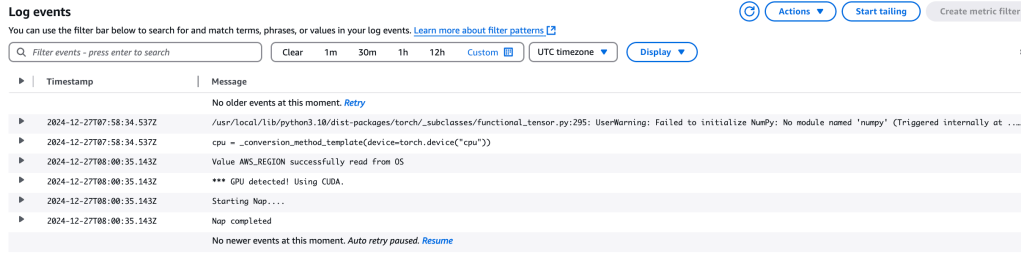
To view the output of the Python script running inside the container, inspect the CloudWatch Log at:
/aws/ecs/ecs-gpu-ecs-task
In this log, you should see confirmation that a GPU was detected and CUDA will be utilised. Look for the following log entry:
*** GPU detected! Using CUDA
Additional Notes
The G4DN instance type family supports up to 4 GPUs. If multiple ECS tasks are running, additional GPUs may be required. The instance types g4dn.xlarge through g4dn.8xlarge include a single GPU, while the g4dn.12xlarge model features 4 GPUs.
It is also possible to share a single GPU across multiple ECS tasks. I will cover this capability in a future blog post.
 AWS Cloud DevOps