

I wanted to create a food-diary app that uploads pictures from my phone to an AWS S3 bucket. Since building a native mobile app has a steep learning curve, I chose a simpler alternative: a Python Streamlit application (https://streamlit.io ) running locally on my device. The Streamlit app listens on port 8501 (http://localhost:8501 ), uses AWS Cognito for authentication and authorization, and stores images in an S3 bucket. Each Cognito user gets a dedicated S3 prefix so their assets remain separate.
The full code for this project is available at https://github.com/arinzl/aws-app-photo-upload-stage1. There are two deployment components: Terraform and Streamlit. First, deploy the Terraform code and then use its outputs to configure the Streamlit application.
Terraform Deployment
The Terraform code is located in the tf subfolder and uses these default variables:
aws_region                = "ap-southeast-2"
app_name                  = "photo-upload"
cognito_callback_urls    = ["http://localhost:8501"]
cognito_logout_urls      = ["http://localhost:8501"]
Update these values to suit your environment:
The Terraform code will create the following resources:
- S3 bucket
- IAM role (for use by authenticated users)
- Cognito User Pool]
- Cognito Identity Pool
- Cognito Client
- Cognito-domain – which is based on app_variable and AWS AccountID
A summary of the Terraform files is shown below:
cognito.tf – creates: Cognito User Pool with password policy and defines email as schema attribute; Cognito User Pool client with client secret and OAuth enabled; Cognito domain for the User Pool, Cognito Identity Pool linked to the User Pool
resource "aws_cognito_user_pool" "photo_upload_pool" {
  name = coalesce(var.cognito_user_pool_name, "${var.app_name}-user-pool")

  password_policy {
    minimum_length    = 8
    require_lowercase = true
    require_uppercase = true
    require_numbers   = true
    require_symbols   = false
  }

  auto_verified_attributes = ["email"]

  username_attributes = ["email"]

  schema {
    attribute_data_type = "String"
    name               = "email"
    required           = true
    mutable            = true
  }
}

resource "aws_cognito_user_pool_client" "photo_upload_client" {
  name         = "${var.app_name}-client"
  user_pool_id = aws_cognito_user_pool.photo_upload_pool.id

  generate_secret                      = true
  allowed_oauth_flows_user_pool_client = true
  allowed_oauth_flows                  = ["code"]
  allowed_oauth_scopes                 = ["email", "openid", "profile"]
  callback_urls                        = var.cognito_callback_urls
  logout_urls                          = var.cognito_logout_urls

  supported_identity_providers = ["COGNITO"]

  explicit_auth_flows = [
    "ALLOW_USER_SRP_AUTH",
    "ALLOW_REFRESH_TOKEN_AUTH"
  ]
}

resource "aws_cognito_user_pool_domain" "photo_upload_domain" {
  domain       = "${var.app_name}-${data.aws_caller_identity.current.account_id}"
  user_pool_id = aws_cognito_user_pool.photo_upload_pool.id
}

# Cognito Identity Pool
resource "aws_cognito_identity_pool" "photo_upload_identity_pool" {
  identity_pool_name               = "${var.app_name}-identity-pool"
  allow_unauthenticated_identities = false

  cognito_identity_providers {
    client_id               = aws_cognito_user_pool_client.photo_upload_client.id
    provider_name           = aws_cognito_user_pool.photo_upload_pool.endpoint
    server_side_token_check = false
  }
}

resource "aws_cognito_identity_pool_roles_attachment" "photo_upload_roles" {
  identity_pool_id = aws_cognito_identity_pool.photo_upload_identity_pool.id

  roles = {
    "authenticated" = aws_iam_role.authenticated_role.arn
  }
}
data.tf – data source to enumerate AWS AccountID to prepend to resource names.
# Data source to get current AWS account information
data "aws_caller_identity" "current" {}
iam.tf – IAM role and policies that authenticated Cognito users will assume.
# IAM role for authenticated users
resource "aws_iam_role" "authenticated_role" {
  name = "${var.app_name}-authenticated-role"

  assume_role_policy = jsonencode({
    Version = "2012-10-17"
    Statement = [
      {
        Action = "sts:AssumeRoleWithWebIdentity"
        Effect = "Allow"
        Principal = {
          Federated = "cognito-identity.amazonaws.com"
        }
        Condition = {
          StringEquals = {
            "cognito-identity.amazonaws.com:aud" = aws_cognito_identity_pool.photo_upload_identity_pool.id
          }
          "ForAnyValue:StringLike" = {
            "cognito-identity.amazonaws.com:amr" = "authenticated"
          }
        }
      }
    ]
  })
}

# IAM policy for S3 access
resource "aws_iam_role_policy" "authenticated_s3_policy" {
  name = "${var.app_name}-s3-policy"
  role = aws_iam_role.authenticated_role.id

  policy = jsonencode({
    Version = "2012-10-17"
    Statement = [
      {
        Effect = "Allow"
        Action = [
          "s3:PutObject",
          "s3:GetObject",
          "s3:DeleteObject"
        ]
        Resource = [
          "${aws_s3_bucket.photo_uploads.arn}/users/$${cognito-identity.amazonaws.com:sub}/*",
          "${aws_s3_bucket.photo_uploads.arn}/users/*"
        ]
      },
      {
        Effect = "Allow"
        Action = [
          "s3:ListBucket"
        ]
        Resource = aws_s3_bucket.photo_uploads.arn
        Condition = {
          StringLike = {
            "s3:prefix" = [
              "users/$${cognito-identity.amazonaws.com:sub}/*",
              "users/*"
            ]
          }
        }
      }
    ]
  })
}
outputs.tf – displays configuration values the Streamlit application needs for initialisation.
output "s3_bucket_name" {
  description = "Name of the S3 bucket"
  value       = aws_s3_bucket.photo_uploads.bucket
}

output "cognito_user_pool_id" {
  description = "ID of the Cognito User Pool"
  value       = aws_cognito_user_pool.photo_upload_pool.id
}

output "cognito_user_pool_client_id" {
  description = "ID of the Cognito User Pool Client"
  value       = aws_cognito_user_pool_client.photo_upload_client.id
}

output "cognito_user_pool_client_secret" {
  description = "Secret of the Cognito User Pool Client"
  value       = aws_cognito_user_pool_client.photo_upload_client.client_secret
  sensitive   = true
}

output "cognito_identity_pool_id" {
  description = "ID of the Cognito Identity Pool"
  value       = aws_cognito_identity_pool.photo_upload_identity_pool.id
}

output "cognito_domain" {
  description = "Cognito hosted UI domain"
  value       = aws_cognito_user_pool_domain.photo_upload_domain.domain
}

output "aws_region" {
  description = "AWS region"
  value       = var.aws_region
}

output "aws_account_id" {
  description = "AWS Account ID"
  value       = data.aws_caller_identity.current.account_id
}

output "app_name" {
  description = "Application name"
  value       = var.app_name
}
provider.tf – Terraform provider and resource tagging.
terraform {
  required_version = ">= 1.0"
  required_providers {
    aws = {
      source  = "hashicorp/aws"
      version = "~> 5.0"
    }
  }
}

provider "aws" {
  region = var.aws_region

  default_tags {
    tags = {
      app_name = var.app_name
    }
  }
}
s3.tf – S3 bucket for image uploads.
# S3 Bucket for photo uploads
resource "aws_s3_bucket" "photo_uploads" {
  bucket = "${var.app_name}-${data.aws_caller_identity.current.account_id}"
}

resource "aws_s3_bucket_server_side_encryption_configuration" "photo_uploads_encryption" {
  bucket = aws_s3_bucket.photo_uploads.id

  rule {
    apply_server_side_encryption_by_default {
      sse_algorithm = "AES256"
    }
  }
}

resource "aws_s3_bucket_public_access_block" "photo_uploads_pab" {
  bucket = aws_s3_bucket.photo_uploads.id

  block_public_acls       = true
  block_public_policy     = true
  ignore_public_acls      = true
  restrict_public_buckets = true
}
terrafom.tfvars – specifies the values of Terrafrom values used during deployment (see above)
variable.tf – Terraform variables.
variable "aws_region" {
  description = "AWS region"
  type        = string
  default     = "ap-southeast-2"
}

variable "app_name" {
  description = "Name of the application"
  type        = string
  default     = "photo-upload"
}

variable "cognito_user_pool_name" {
  description = "Name of the Cognito user pool"
  type        = string
  default     = null  # Will use app_name in resource
}

variable "cognito_callback_urls" {
  description = "Callback URLs for Cognito"
  type        = list(string)
  default     = ["http://localhost:8501"]
}

variable "cognito_logout_urls" {
  description = "Logout URLs for Cognito"
  type        = list(string)
  default     = ["http://localhost:8501"]
}
The entire codebase is available from https://github.com/arinzl/aws-app-photo-upload-stage1. Running terraform apply will deploy the infrastructure and print the variables your Streamlit application needs. Copy those values into the config/.env file—Streamlit will load them at startup.
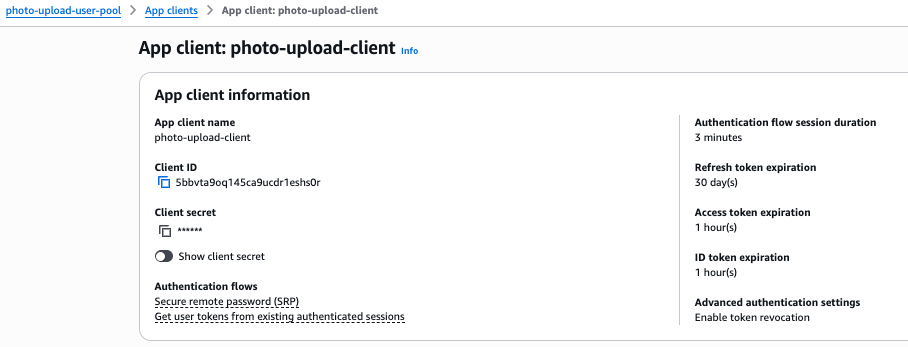
Note, the Cognito app client secret is not displayed in the Terraform output, it can be obtained from the console as shown below.
We’re now ready for the Streamlit application.
Streamlit Application deployment
We will need to install some Python dependencies on your local device to run Streamlit. From the project root, create a virtual environment and install the Python dependencies:
python3 -m venv .venv
source .venv/bin/activate
pip install -r requirements.txt
Note: these commands assume macOS; adjust them if you’re on Windows or another OS.
Navigate to the the app folder and start the Streamlit app:
cd app
streamlit run main.py
A browser window will open at http://localhost:8501 , displaying your Streamlit application.

Click the Register button and sign up with your email address and password. You will receive a verification code by email—enter it when prompted. After successful verification, you’ll be redirected back to http://localhost:8501 . Once you’re authenticated against the Cognito User Pool, the Streamlit page’s layout and available options will change, as shown below.
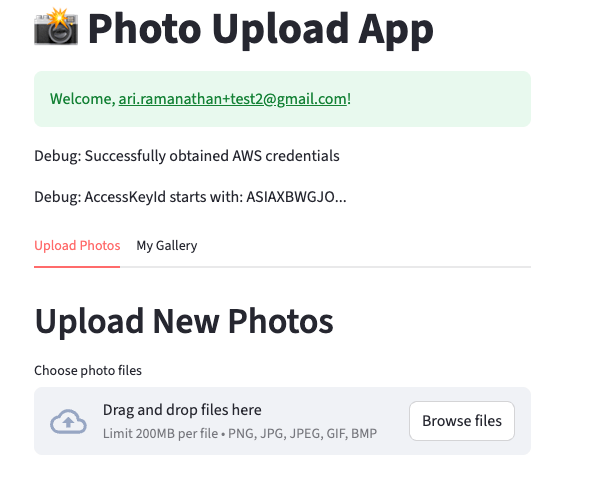
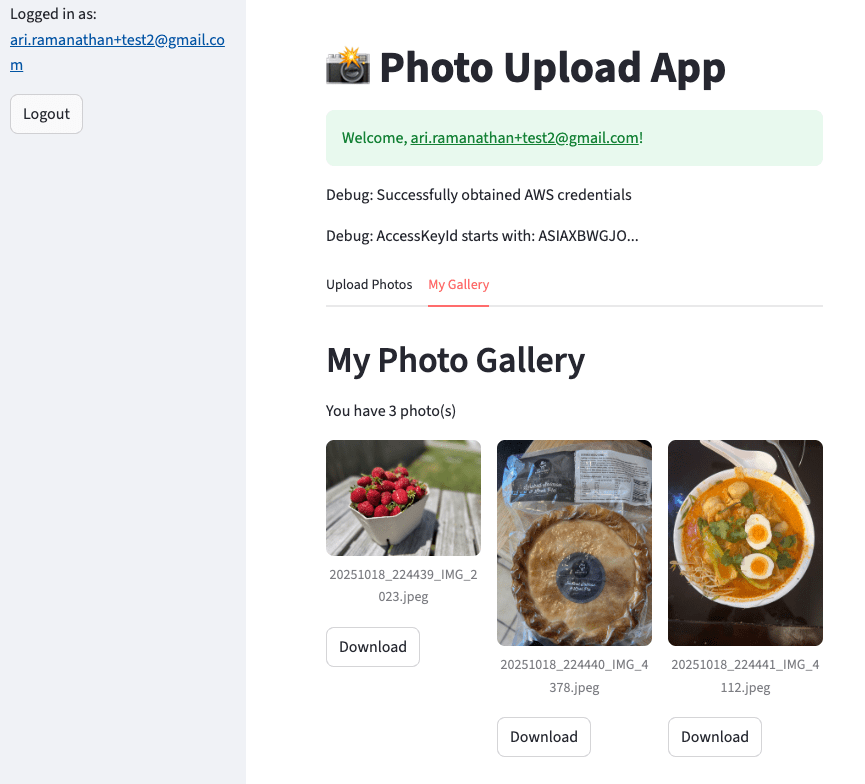
Upload a few photos using the Streamlit app. You should then be able to view your image gallery.
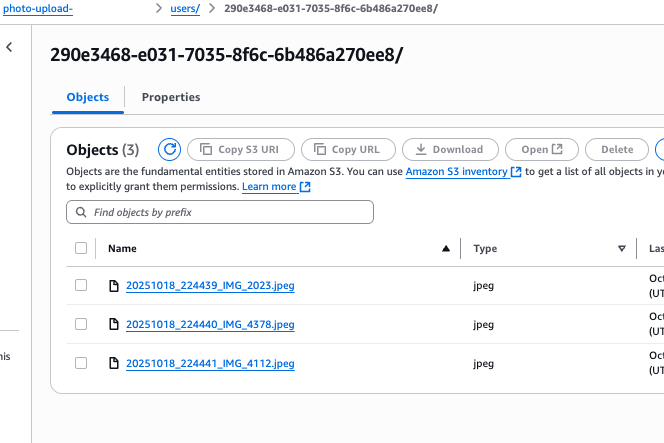
In your S3 bucket, you should see your photo uploads organised under a separate prefix for each user.
Our application is now up and running without many AWS resources. Behind the scenes, AWS Cognito handles most of the authentication and authorization work. Below is a detailed description of the Cognito workflow.
Cognito login workflow
For simplicity, I have assumed the user has already registered and validated their email.
When the Streamlit application starts, it reads config/.env. It ensures the session state (st.session_state) has the following keys:
- autheniticated = False
- access_token = None
- id_token= None
- user_info = {}
The session state (st.session_state) is an in-memory Python object that lives inside the Streamlit Server process.
When the user clicks on login, you invoke the function Cognito.login(). A cryptographic random state is generated and loaded into st.session_state.oauth_state. The browser is directed to a Cognito-hosted UI via:
https://<cognito domain>.auth.<aws region>.amazoncognito.com/login
  ?client_id=<cognito client_id>
  &response_type=code
  &scope=email+openid+profile
  &redirect_uri=<redirect_uri_url_encoded>
  &state=<ramdon state>
The user enters their email (username) and password. If the credentials match those in the Cognito User Pool, Cognito redirects the browser to the REDIRECT_URI (as defined in config/.env) with two query parameters
- code=<AUTHORIZATION_CODE>
- state=<SAME_RANDOM_STATE>
The Streamlit Application manages this callback by POSTing to:
https://<cognito domain>.auth.<aws region>.amazoncognito.com/oauth2/token
with form data:
grant_type=authorization_code
client_id=<CLIENT_ID>
client_secret=<CLIENT_SECRET>
redirect_uri=<REDIRECT_URI>
code=<AUTHORIZATION_CODE>
The Streamlit application exchanges the authorisation code for JSON. Cognito responds with JSON payload:
{
  "access_token": "...",
  "id_token":     "...",
  "refresh_token":"…",
  "expires_in": 3600,
  "token_type": "Bearer"
}
The id_token is a JSON Web Token (JWT). which consists of three Base64-URL-encode parts separated by dots:
HEADER.PAYLOAD.SIGNATURE
The access_token and id_token are then stored in st.session_state. We Base64-decode the JWT payload to extract the user claims (sub, email, cognito:username, etc). The sub is the user’s UUID. We store these values in st.session_state.user_info and set st.session_state.authenticated = True.
The Streamlit Application calls helper get_aws_credentials(), which requests temporary AWS Credentials by sending the JWT to the following URL
https://cognito-identity.<region>.amazonaws.com/<IdentityPoolId>
The Cognito Identity validates the JWT and looks up your role-mapping rules to decide which IAM role to assume. Cognito Identity then calls AWS STS to assume a role and returns an object like:
json
{
  "AccessKeyId": "ASIAXXX…",
  "SecretKey": "wJalrXUtnFEMI/…",
  "SessionToken": "IQo…",
  "Expiration": "2025-10-22T12:34:56Z"
}
These temporary AWS credentials are stored in the Streamlit Application’s memory as a Python dictionary. For dubbugging purposes, the start of the AccessKeyId is shown in the Streamlit UI once login succeeds.
Finally when the Streamlit app creates its boto3 S3 client connection, it uses these temporary credentials to upload and list photos in your S3 bucket.
In summary, this project shows how you can stand up a fully managed, user-aware photo-upload service in just a few steps. With Terraform you provision an S3 bucket, IAM roles and a Cognito User Pool + Identity Pool (including a hosted UI for sign-up/login), and then point a lightweight Streamlit app at those outputs. The Streamlit app handles the OAuth2 “code” flow, stores the returned JWT in session state, swaps it for temporary AWS credentials, and finally uploads or lists each user’s photos under their own S3 prefix. In just one Python app and a handful of AWS resources—without writing a native mobile client—you get email-verified sign-up, secure per-user storage, and a simple web interface you can run locally.
 AWS Cloud DevOps